
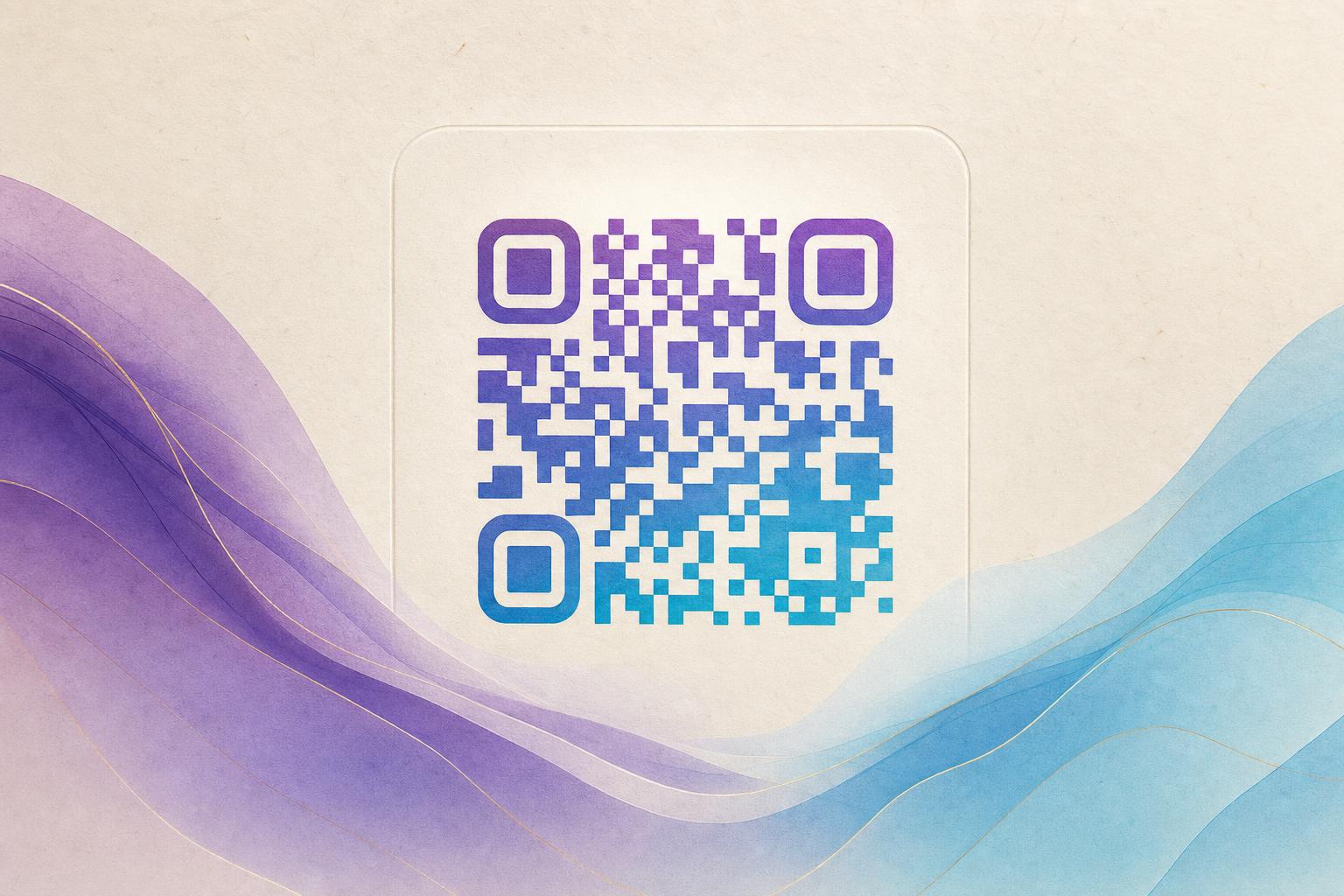
A qr code generator online free is a browser-based tool that converts a link, text, or file into a scannable square pattern without installing software or paying upfront. The short answer: open a free generator, paste your destination URL, choose an artistic style, adjust the blend strength, then download and scan-test the result before you print or post it. The steps below walk through that process using an AI art approach so your finished code looks like a designed image rather than a plain black grid.
Why an Artistic QR Code Beats a Plain One
Standard codes work, but they are visually forgettable. An artistic QR code folds the pattern into a photo, illustration, or brand motif, which raises the odds that people actually point a phone at it. That matters for posters, menus, packaging, flyers, and event signage, where the code competes with everything else on the page for attention.
Two things make this practical rather than gimmicky. First, modern generators keep the code machine-readable while you restyle it. Second, dynamic QR code support means the destination link can change later without reprinting the artwork. You get the visual appeal of a designed image and the flexibility of a live QR code.
Step 1: Prepare the Destination First
Before you touch any design controls, decide exactly where the scan should land. A campaign page, a product listing, a booking form, or a menu all work. Keep the URL short and clean, and make sure the page loads quickly on mobile, because most scans happen on phones.
If you plan to update the link later, choose a dynamic QR code at this stage. Dynamic codes route through a redirect you control, which is what makes an editable QR code possible. Static codes are fixed forever once printed.
Step 2: Generate the Base Code
Open the AI Art QR generator and paste your destination URL into the input field. Select the content type (link, text, or contact card) and generate a preview. At this point you should have a working, plain code. Scan it once with your phone to confirm it resolves correctly before you add any styling. Catching a typo now saves you from reprinting later.
Step 3: Choose a Visual Direction
This is where the design work happens. Think about the image you want the code to live inside. Good directions include:
- Photo fusion: blend the pattern into a product shot, storefront, or landscape so the code reads as part of the scene.
- Logo blending: place your mark at the center and let the pattern radiate outward for QR branding consistency.
- Themed art: match a seasonal campaign, event, or product line with a generated illustration.
- Hidden text art: shape the pattern from lettering or a slogan so the code doubles as typography.
If your goal is a picture-led result, the AI QR code path is the fastest route. If you already have brand assets, a fusion approach that overlays your logo tends to look more polished than a generic generated scene.
Step 4: Tune the Blend So It Still Scans
Every artistic treatment trades some contrast for style. The pattern needs enough light and dark separation for a camera to lock on. Keep these rules in mind:
- Maintain strong contrast between the modules and the background.
- Leave the three corner markers (the finder patterns) clearly visible and uncluttered.
- Do not place busy detail or high-contrast noise inside the code area.
- Keep the code at least 2 cm wide for print, larger for distance scanning.
- Use a circular QR code or styled QR code shape only if your test scans stay reliable.
After each adjustment, scan the preview with two different phones. If either fails, dial the styling back. A beautiful code that will not scan is a dead end.
Step 5: Add Tracking and a Custom Link
If you are using a dynamic QR code generator, you can attach a custom short link and enable QR analytics. That gives you scan counts, rough location data, and time-of-day patterns, which is far more useful than guessing whether a poster worked. A custom QR domain also keeps the redirect URL on-brand when someone previews the link.
Treat this as the difference between a trackable QR code and a decorative square. For any paid campaign, tracking is the whole point.
Step 6: Download, Test, and Deploy
Export the final file at the highest resolution available, ideally SVG or a large PNG for print and a smaller PNG for web. Run a final scan test on the exported file, not just the on-screen preview, because compression can affect clarity. Then place it where it will be seen: posters, packaging, table tents, email footers, or a slide deck.
If the code points to a changing offer, log into your editable QR code generator dashboard and update the destination whenever the campaign shifts. The printed artwork stays the same; only the redirect changes.
Common Mistakes to Avoid
- Styling before testing. Always confirm the plain code works first.
- Over-designing. Too much art inside the code area breaks scannability.
- Forgetting mobile. Test the landing page on a phone, not a desktop.
- No call to action. Tell people what they get from scanning.
- Printing too small. Give the code room to breathe on the layout.
When to Use Each Style
Use photo fusion for product and place-based marketing, logo blending for brand consistency across a campaign QR code set, and themed art for seasonal or event promotions. Hidden text art works well on merchandise and editorial layouts. Animated options suit screens and social posts rather than print.
Whichever route you pick, the workflow stays the same: prepare the link, generate the base code, style it carefully, test it twice, then track the results. A free online generator handles the technical side; your job is to keep the design readable and the destination worth scanning.