
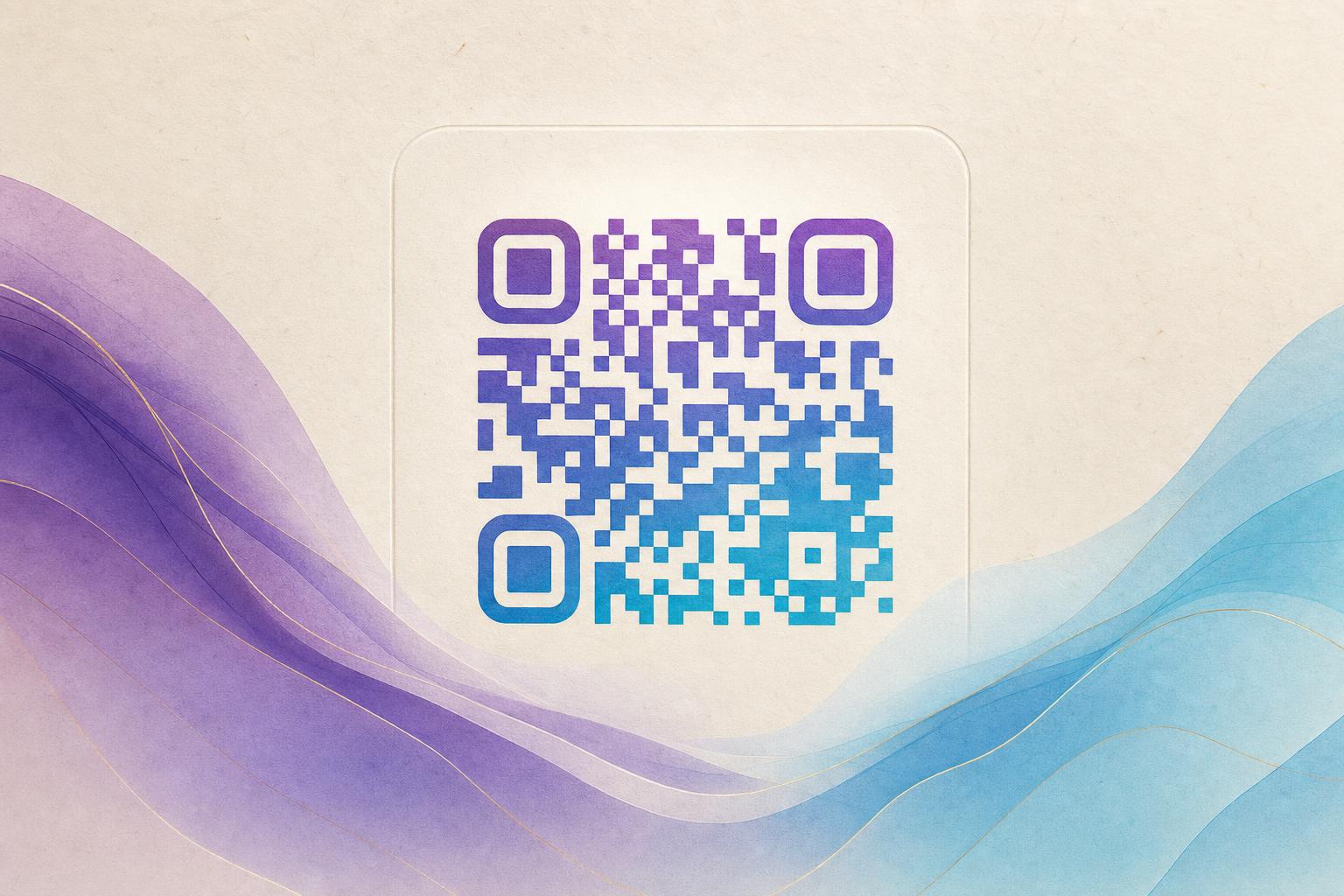
An AI QR code is a QR code that still scans correctly but is generated or blended with artwork, a photo, or a logo so it looks like a designed object rather than a plain black grid. You make one by choosing a destination link, uploading or describing the visual you want, letting the tool blend the code into that image, then testing the result before sharing it. The fastest way to do this is with the AI Art QR tool, which handles the blending for you.
Below is a practical, repeatable workflow. It works whether you want a subtle artistic QR code for a poster, a branded code for a menu, or a photo-based code for a wedding invitation.
Step 1: Decide what the code should do
Before you touch any design settings, settle the destination. A beautiful code that leads nowhere useful is just a picture. Common destinations include:
- A product or landing page URL
- A menu, PDF, or booking form
- A social profile or video
- A membership signup or event RSVP page
If you plan to change the destination later, use a dynamic QR code with a smart QR redirect and a custom short link. That way the printed code keeps working even when the underlying page changes, and you can review QR analytics to see how many people scanned it.
Step 2: Choose the visual style
This is where an artistic QR code generator earns its keep. Pick a direction that matches your brand or the moment:
- Photo blend — the code is woven into a photograph, such as a product shot or a landscape.
- Logo fusion — your logo sits at the center or the code pattern echoes your brand marks.
- Illustrated or painterly — the code becomes part of a drawing, poster, or textured background.
- Circular QR code — dots or modules arranged in a round shape for a softer, more decorative look.
Keep the style consistent with where the code will appear. A playful illustrated code suits a café table tent; a restrained logo-based styled QR code suits a corporate report.
Step 3: Generate the code
- Open the AI Art QR generator.
- Paste your destination URL or short link.
- Upload the image, logo, or photo you want to blend, or describe the artwork you want the tool to create.
- Adjust contrast, pattern style, and color so the code modules stay distinct from the background.
- Generate a preview and compare a few variations before committing.
If you want to beautify QR code designs you already have, upload the existing image and let the tool restyle it rather than starting from scratch.
Step 4: Protect scannability
Art and function have to coexist. A few rules keep your code reliable:
- Contrast is non-negotiable. Dark modules on a light background scan best. Avoid low-contrast pastels for the code itself.
- Keep the finder patterns intact. The three corner squares must stay clearly visible and undistorted.
- Do not over-decorate the center. If you place a logo there, keep it small and leave error-correction headroom.
- Test at real size. Scan the code from the distance and angle a real user would use, on both a phone camera and a dedicated scanner app.
Rule of thumb: if the code does not scan instantly from a printed proof at arm's length, simplify the artwork before you publish.
Step 5: Test on multiple devices
Open the image on at least two phones, one iOS and one Android, and scan from a screen and from a printed sheet. Check that the destination loads quickly and that the page is mobile-friendly. If you are using a trackable QR code, confirm the redirect fires and the scan registers in your dashboard.
Step 6: Export and place it well
Download the highest-resolution version available. For print, keep the code at least 2 cm (about 0.8 in) square for close-range scanning and larger for posters or window displays. Leave a clear margin around the code so surrounding graphics do not interfere. If the code sits on a busy photo, add a subtle light panel behind it.
Step 7: Extend the design into a full campaign
Once you have one strong code, reuse the style across touchpoints. Pair the code with an AI poster or use an online poster maker to build matching signage, table cards, or flyers. A consistent QR branding system, same palette, same pattern style, same placement, makes every campaign QR code instantly recognizable.
For ongoing projects, keep a small library of approved styles inside your QR code studio so new codes match the old ones. If you need motion, consider an animated version with the GIF QR tool; if you need photo blending specifically, the fusion tool is the better fit.
Common mistakes to avoid
- Testing only on the screen where you designed the code
- Using a destination that requires a login before showing content
- Letting the artwork cover the corner alignment squares
- Forgetting to set up a redirect, then needing to reprint everything
- Choosing a style that clashes with the surrounding layout
Frequently asked questions
Is an AI QR code free to create?
Many tools, including Aiqrdream, offer a free starting point for generating and previewing designs. Paid options typically add higher-resolution exports, dynamic redirects, and analytics.
Will an artistic code still scan?
Yes, if you preserve contrast and the corner patterns. Always test a physical proof before a large print run.
Can I change the link after printing?
Only if you used a dynamic code with a redirect. Static codes are locked to their destination.
Should I use a circular code?
A circular QR code looks softer and works well on packaging and social graphics, but verify scannability carefully since the shape reduces usable module area.
Start with one link, one image, and one test scan. That small loop, design, generate, test, refine, is what separates a code people admire from a code people actually use.