
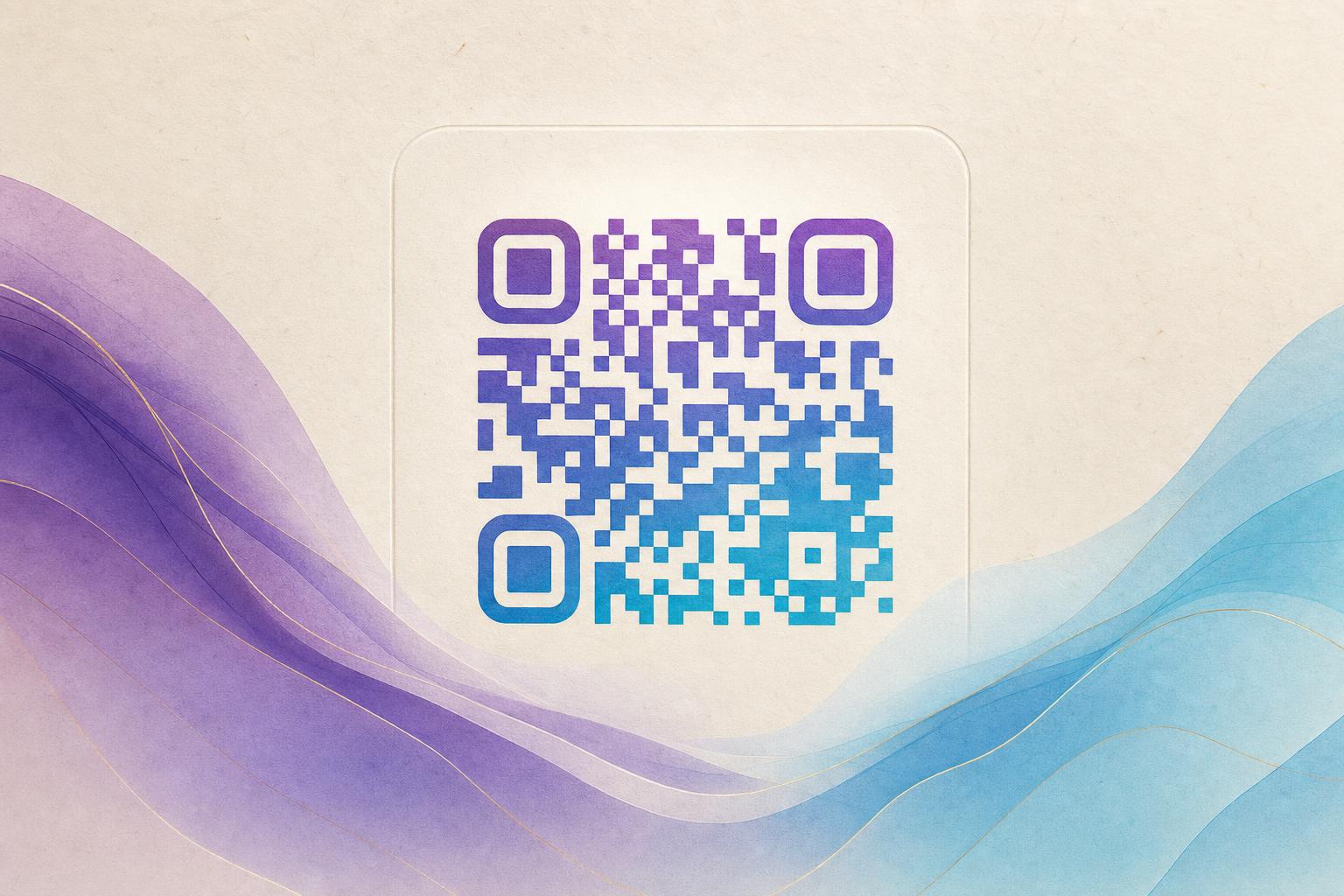
To use a QR code generator, you enter the destination you want people to reach, let the tool build the code, then style and test it before you download. With an AI QR code generator, that same flow also produces artistic QR codes, where the pattern is blended into an image, logo, or illustration instead of a plain black-and-white grid. The steps below walk you through the full process using an AI art QR workflow, from choosing a link to exporting a polished, scannable design.
Step 1: Decide What the QR Code Should Do
Before you open any qr code generator tool, define the job of the code. A QR code is only as useful as the destination behind it. Common goals include:
- Scan to redirect to a product page, menu, event registration, or portfolio.
- Membership QR that opens a signup form or member portal.
- Campaign QR code for a poster, flyer, or packaging insert.
- Live QR code that points to a social profile or playlist.
Write down the exact URL. If you plan to change the destination later, choose a dynamic QR code so the link stays editable after printing. A trackable QR code with QR analytics is worth it if you want to know how many people scanned.
Step 2: Open the AI Art QR Tool
Go to the AI Art QR tool. This is the part of the QR code studio where you generate an AI QR code by combining your link with an artistic image. You do not need design software; the tool handles the blending between the code pattern and the artwork.
If your goal is a photo or logo blend instead of a full illustration, the same workflow applies to a fusion-style tool. The important thing is to pick one tool and follow its prompts in order rather than jumping between generators.
Step 3: Enter Your Destination Link
Paste your URL into the destination field. Double-check for typos, missing characters, or a stray space, because a broken link is the most common reason a finished design fails. If the tool offers a custom short link or custom QR domain, set that now so the code looks clean and matches your brand.
For a smart QR redirect, you can point the code at a single short link and change where it lands later without reprinting. That is the practical advantage of an editable QR code for any long-running poster or product label.
Step 4: Choose an Art Style and Generate
Now describe the look you want. Strong prompts mention the subject, mood, palette, and level of detail. For example: a mountain landscape at sunset, warm orange and teal, soft painterly texture, centered composition. Then generate.
- Review the first result and check that the code pattern is still visible.
- Regenerate a few times to compare options.
- Adjust the prompt if the art overwhelms the pattern.
Good artistic QR codes keep a clear contrast between the modules and the background. If the design looks beautiful but the pattern is buried, the code will not scan reliably. Many creators try artistic qr code free options first to test a style before committing to a final design.
Step 5: Style the Code for Your Brand
Once you have a base image, refine the details. A beautiful qr code generator should let you control the elements that affect both looks and scannability:
- Shape: a circular QR code or rounded modules can suit a softer brand style.
- Color: match brand colors but keep strong contrast between dark and light areas.
- Logo: place a small logo in the center only if the tool keeps the pattern readable.
- Quiet zone: leave a clear margin around the code so scanners can lock on.
This is the beautify QR code stage, and it is where a styled QR code becomes a design asset rather than a utility graphic. Use QR branding consistently: the same palette, the same logo placement, and the same corner treatment across all your codes.
Step 6: Test the Scan Before You Export
Test with at least two phones and two scanning apps. Hold the phone at different distances and angles, and try in low light. If a scan fails, reduce the art intensity, increase contrast, or enlarge the code within the image.
Always test the printed size, not just the screen. A code that scans on a monitor can fail on a small sticker.
Check that the destination loads correctly and that any tracking parameters are working. If you are using QR analytics, confirm that a test scan registers in the dashboard.
Step 7: Export and Place the Code
Download the highest resolution file available, ideally a vector or large PNG. Place the code where it will be easy to reach and scan: lower-right on posters, clear of folds on packaging, and large enough for the viewing distance. Keep the surrounding area uncluttered.
If your campaign includes a visual, you can pair the code with an AI poster made in an online poster maker so the art style matches the code. This keeps AI poster design and QR design consistent, which matters for QR code marketing that needs to look intentional rather than improvised.
Step 8: Track, Edit, and Reuse
After launch, review scan data to see which placements perform best. With a dynamic code you can update the destination, swap a campaign page, or fix a broken link without reprinting. Reuse the same art style for future codes so your QR design tool output becomes a recognizable part of your brand.
For teams, document the prompt, colors, and export settings that worked. That turns a one-off AI art QR into a repeatable process anyone can follow.
Quick Checklist
- Define the destination and whether it must stay editable.
- Open the AI art QR tool and paste the link.
- Write a specific art prompt and generate several options.
- Style shape, color, and logo while protecting contrast.
- Test on multiple devices at the final print size.
- Export at high resolution and place with a clear margin.
- Track scans and update the link when needed.
Follow these steps and a QR code generator becomes more than a link shortener. It becomes a small design studio that produces artistic QR code assets people actually want to scan.