
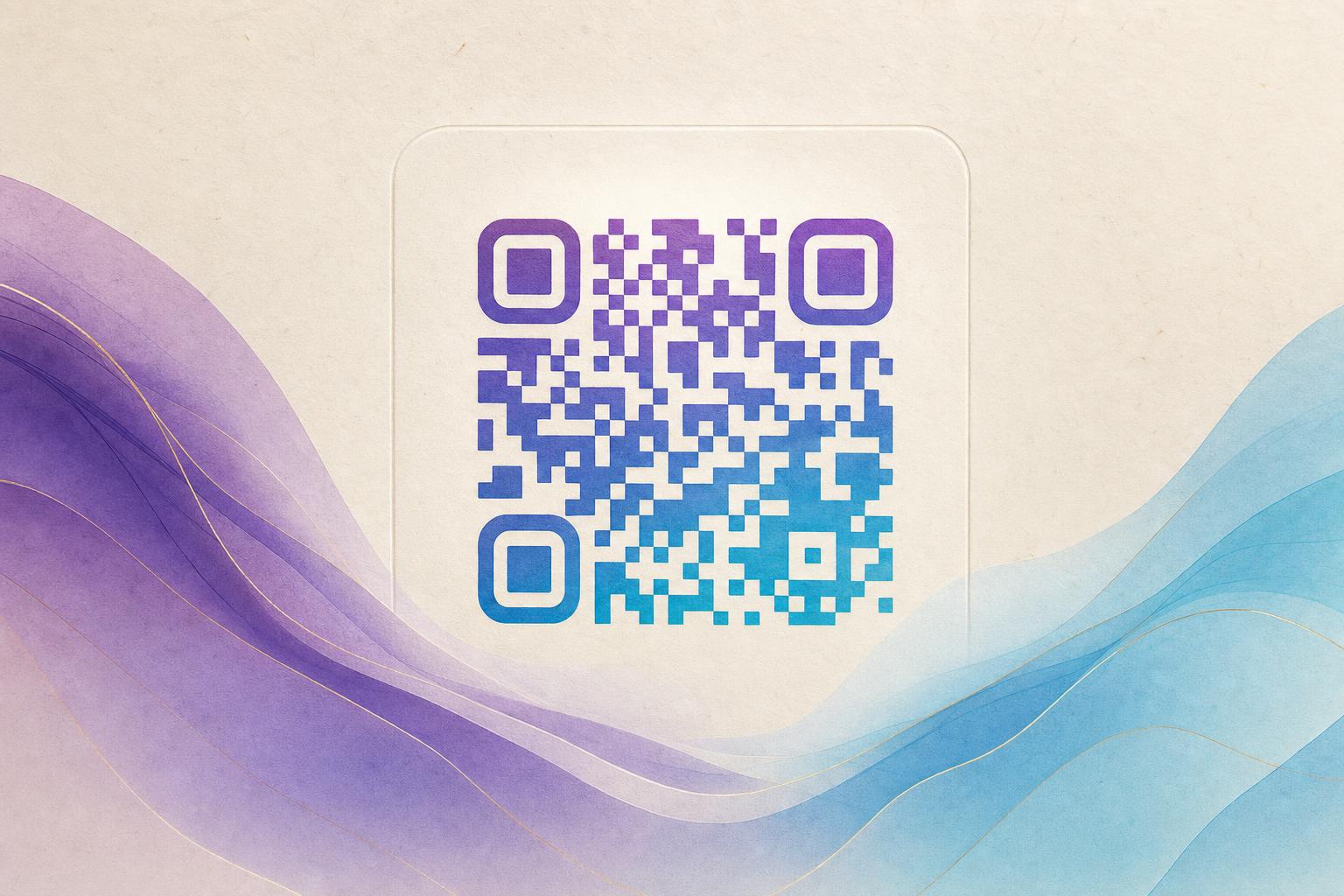
A circular QR code generator free tool turns the usual square block into a round code that still scans. You do not need design software or a paid plan. With the AI Art QR tool, you enter a link, pick a round style, blend the code into artwork, and download the result. The steps below show the full process, from choosing your destination link to testing the final image on real phones.
What a circular QR code actually is
A circular QR code is a standard QR code with its modules arranged inside a round frame instead of a square one. The three corner finder patterns usually stay intact or are restyled as rings, because scanners rely on them for orientation. Everything in the middle carries your data.
Two things matter for a round code to work:
- Contrast. Dark modules on a light background remain the safest choice. Low-contrast round codes fail more often than square ones.
- Quiet zone. Leave a clear margin around the circle. Art that crowds the edge confuses some scanners.
Round codes look softer on packaging, stickers, menus, and social posts. That visual advantage is the whole reason to use one, so make sure the design does not cost you scans.
Step 1: Decide where the code should go
Before you open any QR code generator, write down the destination. A round code is often used for a menu, a profile page, a product page, or a signup form. If you plan to change that destination later, choose a dynamic QR code so the printed image keeps working while the link behind it changes.
A custom short link keeps the URL short and readable in your dashboard, and a custom QR domain makes the scan look trustworthy. Both help when you run QR code marketing across several campaigns.
Step 2: Generate the base code
- Open the AI Art QR generator.
- Paste your destination URL.
- Choose a circular or rounded frame style.
- Set the foreground and background colors, keeping strong contrast.
- Generate a preview and scan it once before you add any art.
This baseline test matters. If the plain round code already fails, the artwork will only make it worse. Fix contrast and size first.
Step 3: Blend the code into artwork
This is where an ai qr code generator earns its place. Instead of pasting a code on top of an image, you describe a scene and the tool works the code into the composition. The result reads as a single artistic QR code rather than a sticker.
Prompts that work well
- Describe the subject, mood, and color palette in one or two sentences.
- Ask for a soft background so the code area stays clean.
- Keep the center simple; busy detail there hides modules.
- Request a circular composition so the frame feels intentional.
You can also fuse a photo or logo into the code with a blending tool if you want brand recognition rather than a painted scene. Either way, the goal is the same: a styled QR code that people want to scan.
Design tip: the best artistic QR code hides the code in plain sight. If a stranger can spot the square grid instantly, soften the edges and let the art carry the shape.
Step 4: Use hidden text and poster layouts
Some creators add hidden text art so the code doubles as a message. AI hidden text places words inside the pattern, which works nicely for invitations, launches, and event badges. For a larger piece, build an AI poster around the code using an online poster maker or the built-in poster generator. The code becomes one element of the layout instead of an afterthought.
This approach supports AI poster design without extra software, and it keeps the artistic QR code readable because you control spacing from the start.
Step 5: Test before you print
- Scan from three distances: close, arm's length, and about two meters.
- Test on at least two phones, one older model if possible.
- Check in low light and on a screen as well as on paper.
- Print a small proof at final size; a code that works on screen can fail when scaled down.
- Confirm the destination page loads fast on mobile.
If scans fail, increase the size, raise contrast, or simplify the art near the code. A quick fix usually beats a full redesign.
Step 6: Keep it editable and track results
Choose an editable qr code generator so you can revisit the design later. An editable QR code lets you swap the link, adjust colors, or update the artwork without reprinting. That flexibility is the practical difference between a one-off image and a working asset.
Turn on QR analytics to see scans by time and place. Use a trackable QR code for each placement so you know which poster or sticker performs. For recurring use, a membership QR or live QR code can point to a page that changes with your program.
For QR branding, keep one consistent frame style across all materials. A QR code studio workflow, where every code shares the same palette and corner treatment, makes your campaign QR code instantly recognizable.
Common mistakes to avoid
- Too much art over the data. Keep the center calm.
- Low contrast. Pastel on pastel rarely scans.
- No quiet zone. Leave breathing room around the circle.
- Static codes for long campaigns. Use a smart QR redirect if the destination may change.
- No testing. Always scan a proof before a full print run.
Final thoughts
A free round code is easy to make once you follow the order: destination first, base code second, art third, testing last. Use the AI Art QR tool to build the circle, blend the artwork, and keep the design editable. Then scan it yourself before anyone else does. A beautiful circular QR code only earns its keep when it opens the right page on the first try.