
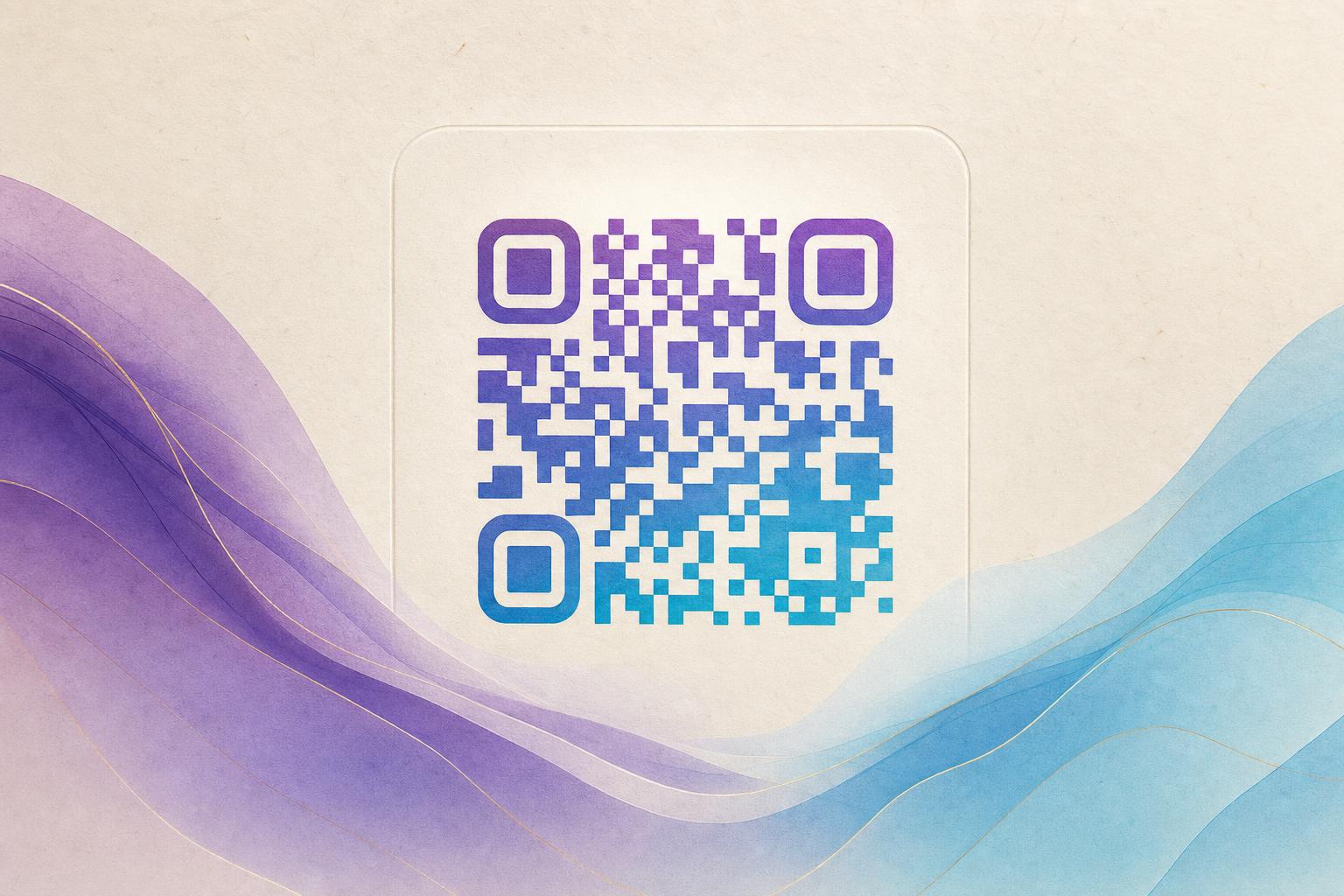
A circular QR code free of charge is entirely possible: you generate a round, styled QR code in a browser, download it as an image, and use it on posters, packaging, menus, or social profiles without paying. The key is that the code stays scannable — a circle changes the silhouette, not the underlying data — so the modules must remain high-contrast and correctly spaced. The fastest route is to open an AI Art QR generator, paste your destination link, pick a round style, and export. Below is the full process, from choosing your link to testing the final image.
What Makes a QR Code Circular
A standard QR code is a square grid of black and white modules with three large square finder patterns in the corners. A circular QR code keeps that data grid but renders it inside a round frame, often with rounded modules, circular finder rings, and a logo or artwork in the center. Two things matter for scannability:
- Finder patterns must stay recognizable. Even when rounded, the three corner markers need clear contrast so a phone camera can lock on.
- Error correction gives you room. Higher error correction levels let you cover part of the code with a logo or art without breaking the scan.
That is why a round design works best when it is generated by a proper QR code studio rather than cropped from a square image in a photo editor.
Step 1: Decide Where the Code Will Live
Before you style anything, pick the destination and the placement. A circular code on a printed flyer needs a larger physical size than one on a phone screen. Write down:
- The exact URL or action (website, menu, signup form, membership page).
- Where the code appears (poster, sticker, table tent, profile image).
- Whether you may need to change the link later.
If the answer to the last point is yes, use a dynamic QR code so the destination stays editable after printing.
Step 2: Generate the Base Code
Open the AI Art QR tool and paste your link. Choose a round or circular frame style, then set the error correction level to high if you plan to add a center logo. Keep the foreground dark and the background light at this stage — you can add color once the code scans cleanly.
Step 3: Blend in Art, a Photo, or a Logo
This is where a plain code becomes an artistic QR code. You have three practical options:
AI art background
Use the qr code ai art generator online feature to wrap the modules in an illustration, gradient, or textured pattern. Let the artwork sit behind and around the code rather than on top of the critical finder patterns.
Photo or logo fusion
A QR code blended with a photo or logo works well for brands. Place the logo in the center at roughly 15–20% of the code's width, and keep a quiet zone of clear space around the round frame. This is the same principle behind a membership QR on a card: the mark is visible, but the scan still succeeds.
Hidden text art
AI hidden text lets you shape the modules so they read as letters or a word from a distance while remaining a functional code up close. It is a strong choice for event posters and campaign QR codes where the code itself is part of the design.
Step 4: Test Before You Commit
Never publish a styled code without testing. Run these checks:
- Scan with at least two phones, one iOS and one Android.
- Test at the real print size and from a normal viewing distance.
- Test in low light and at an angle.
- Confirm the link opens the right page, not a redirect loop.
If a scan fails, increase contrast, enlarge the quiet zone, reduce the logo size, or raise the error correction level.
Step 5: Make It Trackable and Editable
A beautiful code is only useful if you can measure and adjust it. When you create a dynamic QR code, you get a smart QR redirect: the printed image points to a short link you control, and you can change the destination later without reprinting. Pair it with QR analytics to see scan counts by time and device, and use a custom short link or custom QR domain so the code looks clean and on-brand.
Design tip: treat the circular frame as part of your layout, not an afterthought. Leave generous margin around it so the code breathes.
Step 6: Export and Place
Download the highest resolution available — SVG or a large PNG — for print, and a smaller PNG for web. Keep a copy of the editable QR code file so you can produce seasonal variants. If you want motion, a GIF QR version can animate the background while the code stays static and scannable.
Common Mistakes to Avoid
- Covering a finder pattern with a logo or artwork.
- Using low-contrast colors such as light gray on white.
- Cropping a square code into a circle in a photo editor.
- Printing too small — round codes need a bit more room than square ones.
- Forgetting to test the final exported file rather than the on-screen preview.
Quick Recap
To get a circular QR code free, generate a round styled code in a browser-based QR design tool, keep the three finder patterns clear, add art or a logo with high error correction, test on real devices, and use a dynamic link so the code stays editable and trackable. Done well, a circular code becomes a design asset rather than a utility stamp — and it still does its job in a single scan.