
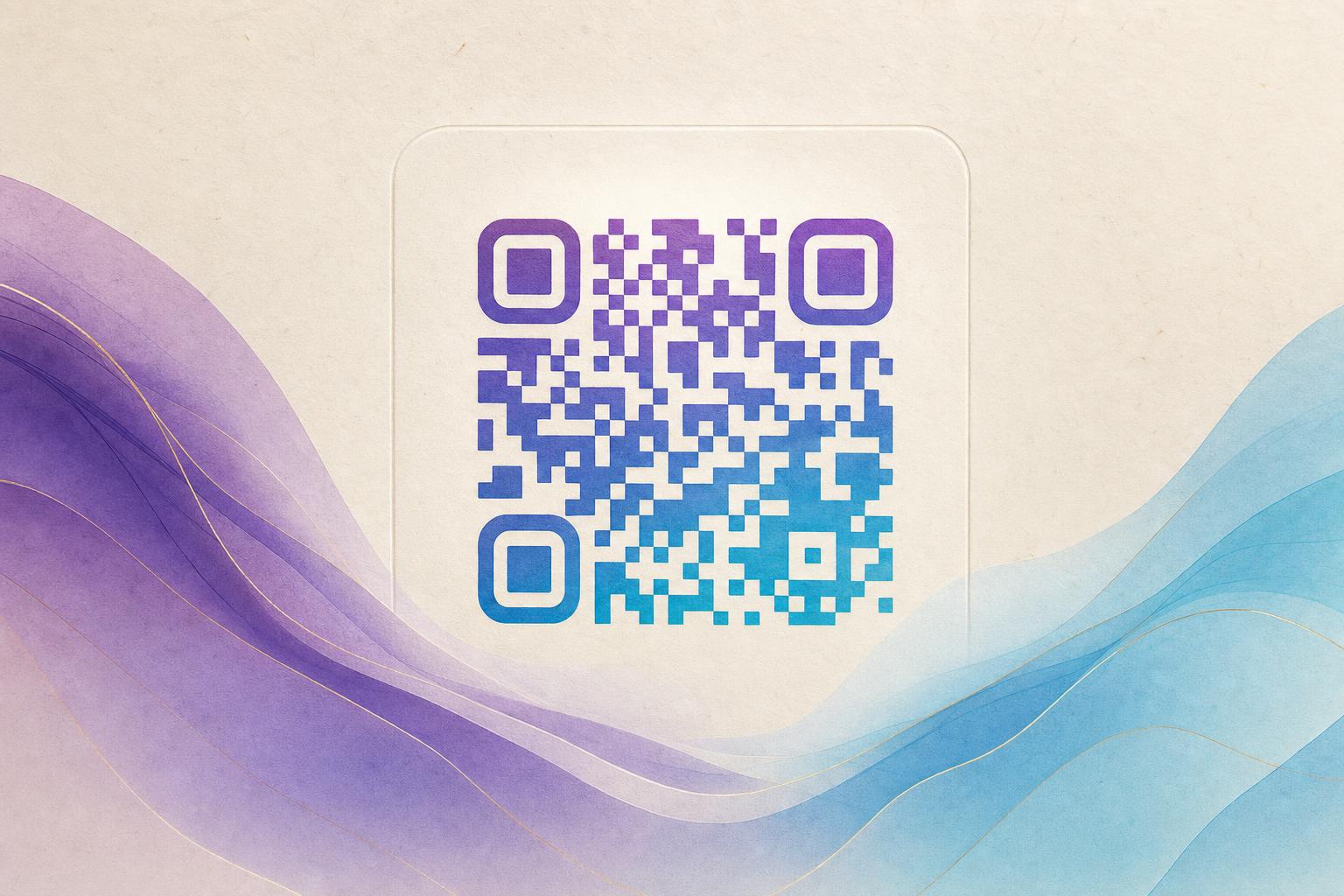
An artistic QR code generator is a tool that converts a standard link into a scannable image where the code's modules are woven into artwork, a photo, or a brand logo instead of sitting on a plain white square. The result is a styled QR code that still resolves to a URL when scanned but reads as part of your design. You can build one in a few minutes with the AI Art QR tool, and this tutorial shows the full workflow from link to live, trackable code.
Step 1: Decide What the Code Should Do
Before you open any generator, settle the destination. Artistic codes are still functional codes, and a beautiful image that leads nowhere useful wastes the scan. Pick one clear action:
- Scan to redirect to a landing page, menu, product drop, or signup form.
- Membership QR that opens a loyalty or access page.
- Campaign QR code for a poster, flyer, or packaging insert.
Write the final URL down. If you plan to change the destination later without reprinting, use a dynamic QR code so the artwork stays the same while the link behind it updates.
Step 2: Choose Your Art Style
The style you pick determines how much of the artwork survives the scan. Three routes work well:
AI art QR
Describe a scene, texture, or mood and let the ai art qr code generator blend the pattern into the code. This is the fastest route to an AI QR code that looks hand-illustrated.
Photo or logo fusion
If you already have a product shot or brand mark, use QR fusion to merge it with the code. This keeps QR branding consistent across packaging and print.
Animated GIF
For screens, a looping live QR code draws the eye on digital signage, stories, and event displays.
You can also experiment with a circular QR code when the layout is centered on a badge, sticker, or coaster.
Step 3: Generate the Base Code
- Paste your destination URL into the generator.
- Select the art style or upload your image.
- Adjust contrast so the dark modules stay clearly darker than the background.
- Generate a preview and download a high-resolution file.
Keep the quiet zone, the empty margin around the code, intact. Cropping it is the most common reason a styled QR code fails to scan.
Step 4: Test Before You Print
Never ship artwork you have not scanned yourself. Run these checks:
- Scan from at least three phones, including one older device.
- Test at the real print size, not zoomed in on a monitor.
- Test under low light and at an angle.
- Confirm the redirect lands on the correct page, not a 404.
If the code scans only when the phone is pressed against the screen, increase contrast or simplify the artwork before publishing.
For a quick second opinion, generate two versions and compare scan speed side by side.
Step 5: Add Tracking and a Custom Link
A trackable QR code tells you how many people actually scanned. Set up a custom short link so the code looks clean and the destination stays flexible, and use a custom QR domain if you want the link to carry your brand. With QR analytics you can see scan counts by day, device, and location, which turns QR code marketing from guesswork into a feedback loop.
Because the code is an editable QR code, you can swap the destination after a campaign ends without redesigning the artwork.
Step 6: Place It Where It Gets Scanned
Context matters as much as design. Good placements include:
- Table tents and window decals for restaurants
- Packaging panels with a short call to action
- Event badges and lanyards
- Posters and social graphics built in a poster generator
Pair every code with one line of instruction. "Scan for the menu" outperforms a bare image every time.
Step 7: Iterate on Results
After a week, check your analytics. If scans are low, the problem is usually placement or contrast, not the artwork. Try a bolder AI poster layout, a larger code, or a version with more separation between the art and the modules. Small adjustments often double scan rates.
Quick Checklist
- One clear destination per code
- High contrast between modules and background
- Quiet zone preserved
- Tested on multiple phones at print size
- Dynamic link for future edits
- Analytics enabled
Done well, an artistic QR code stops looking like a utility and starts working as a design element. Start with the AI Art QR tool, generate a draft, and test it before you commit to print.