
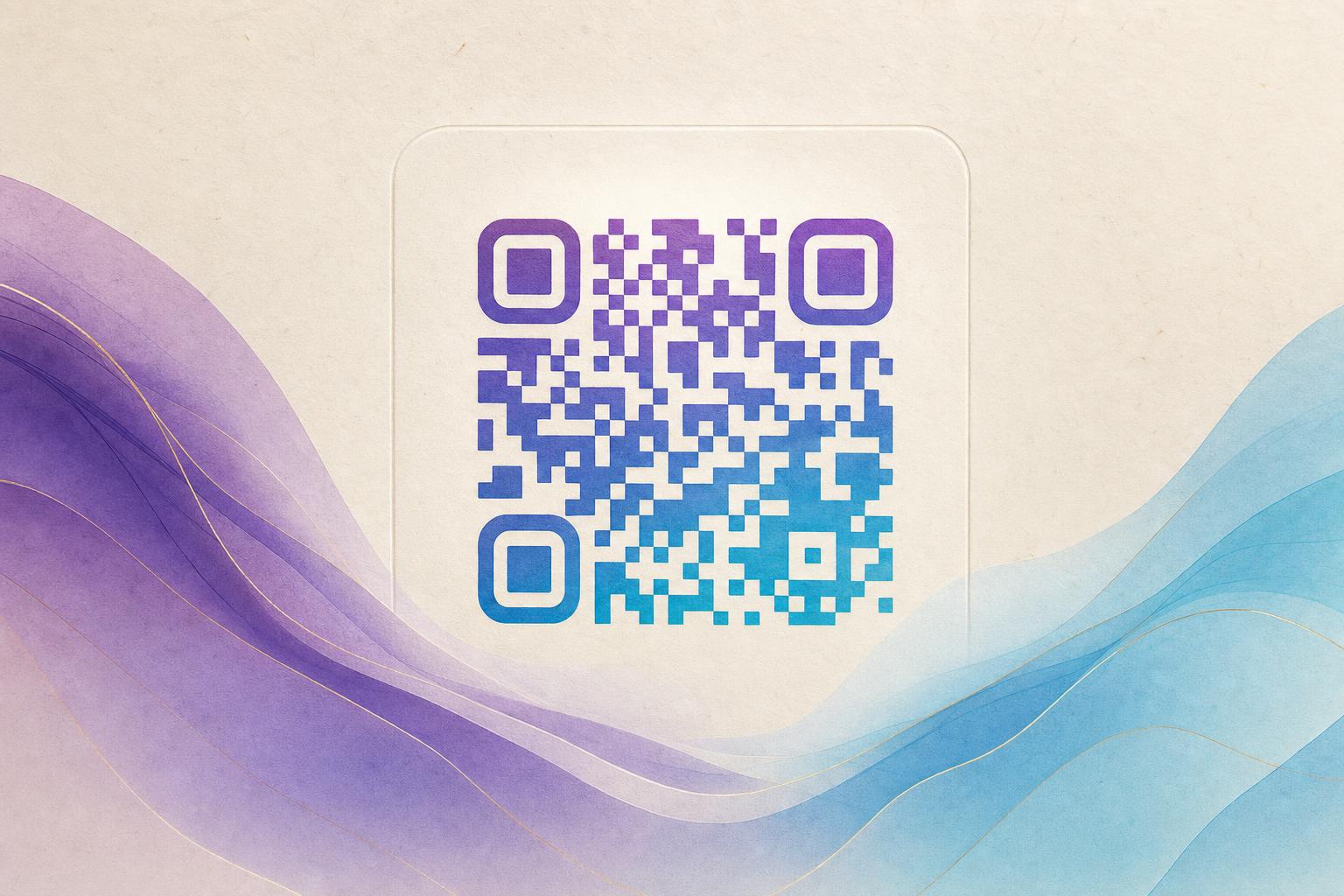
An ai art qr code generator takes a normal black-and-white code and rebuilds it as a picture: a photo, a painted scene, a logo, or a themed illustration that still resolves to your URL when scanned. Instead of pasting a plain square onto a flyer, you generate an AI art QR where the code is woven into the artwork itself. The result is a beautiful qr code generator free workflow that turns a utility into a design element. You can start with the AI Art QR Code Generator and follow the steps below to produce a code that looks intentional and scans every time.
Step 1: Decide What the Code Must Do
Before you touch the design, lock down the job. An artistic QR code is still a functional object, and the destination shapes everything else.
- Scan to redirect: a landing page, menu, signup form, or product page.
- Campaign QR code: a seasonal promotion or event page you may want to update later.
- Membership QR: a card or badge that links to a member portal.
- QR code marketing: a print ad, packaging label, or storefront window.
Write down one URL and one sentence describing the audience. If the code may need to change after printing, plan for a dynamic QR code so the destination stays editable while the artwork stays the same.
Step 2: Pick a Theme That Matches the Destination
The best AI art QR designs echo what the scanner will find. A coffee shop code can sit inside latte foam or a wood-grain pattern. A travel brand can bury the modules in a skyline. A fitness studio can use a dumbbell silhouette or a running track.
Choose one strong subject and one dominant color. Busy, multi-subject scenes force the generator to guess where the code modules belong, which is where scanning starts to fail. A single clear focal point gives the QR design tool room to keep the pattern intact.
Consider hidden text art
If you want a subtle option, try hidden text art or AI hidden text: your brand name or campaign slogan is rendered as the artwork, and the code modules blend into the letterforms. It reads as typography from a distance and as a scannable code up close.
Step 3: Generate the First Version
Open the generator, paste your URL, and describe the scene you want. Keep prompts concrete: subject, style, color palette, and mood. For example, "minimal line-art mountain range, deep green and cream, flat vector style" gives the model more to work with than "nature."
- Paste your destination link and confirm it loads correctly on mobile.
- Enter a short, specific prompt for the artwork.
- Choose a style preset or upload a reference image if the tool supports it.
- Generate several variations rather than accepting the first result.
When you blend a photo or logo into the code, use a high-contrast source image. Faces, product shots, and simple logos survive the process far better than low-contrast or heavily detailed images.
Step 4: Tune Contrast and Quiet Zone
Scannability comes down to contrast and breathing room. Every phone camera needs dark modules against a lighter background, plus a clean margin around the code.
- Keep the code area darker than the surrounding artwork.
- Preserve a clear quiet zone of empty space around the edges.
- Avoid placing the code over faces, text, or busy textures.
- Test both a circular QR code and a square version; round shapes look softer but can reduce module clarity.
If a design looks stunning but scans slowly, raise the contrast before you change anything else.
Step 5: Test on Real Devices
Never ship an AI art QR from a desktop preview alone. Test the way your audience will.
- Scan from at least three phones, including an older model.
- Test at the final print size, not zoomed in on a monitor.
- Check scanning in low light and at an angle.
- Confirm the destination page loads quickly on mobile data.
If it does not scan in two seconds from arm's length, redesign it. A beautiful code that fails is just a picture.
Step 6: Add Tracking and a Custom Link
A trackable QR code tells you whether the design actually worked. Use a custom short link so the printed code stays short and readable, and consider a custom QR domain if you want the link to reinforce your brand.
With QR analytics you can see scans by day, device, and location. That data turns a design experiment into a measurable campaign. If a campaign QR code underperforms, you can update the destination without reprinting the artwork when you use a dynamic QR code.
Step 7: Place It Like a Designer
An artistic QR code deserves better than a corner sticker. Treat it as part of the layout.
- Give it a caption such as "Scan to see the menu" so people know it is interactive.
- Size it so the code is at least 2 cm wide on print and larger for posters.
- Place it where a phone can reach it comfortably, not near a floor or ceiling edge.
- Reuse the same artwork across packaging, social posts, and email signatures for consistent QR branding.
If you are building a full layout around the code, an AI poster or online poster maker can host it alongside your headline and logo, giving you a complete AI poster design rather than a lone square.
Step 8: Keep It Editable
Save your project. An editable QR code lets you swap the artwork, adjust colors, or change the destination later. Free tools often let you edit qr code online and export a fresh file without starting over, which matters when a campaign runs across several months.
Keep a master file at the highest resolution available, plus a PNG for digital use and a vector version for print. Store the prompt and settings next to the file so a teammate can reproduce the look for the next campaign.
Common Mistakes to Avoid
- Over-styling: too much texture destroys module contrast.
- Tiny codes: shrinking the artwork also shrinks the scannable area.
- Ignoring the quiet zone: cropping too tight breaks the scan.
- No fallback: always print the plain URL nearby for accessibility.
- Forgetting mobile: test the landing page on a phone before you print.
Bring It Together
A great AI art QR is a small piece of design work with a clear job. Choose the destination, pick one strong theme, generate a few variations, protect contrast and the quiet zone, then test on real phones before you commit to print. Add tracking so you can prove the design performed, and keep the file editable so the next campaign is faster than the last. Start with the AI Art QR Code Generator, and let the artwork carry the scan.