
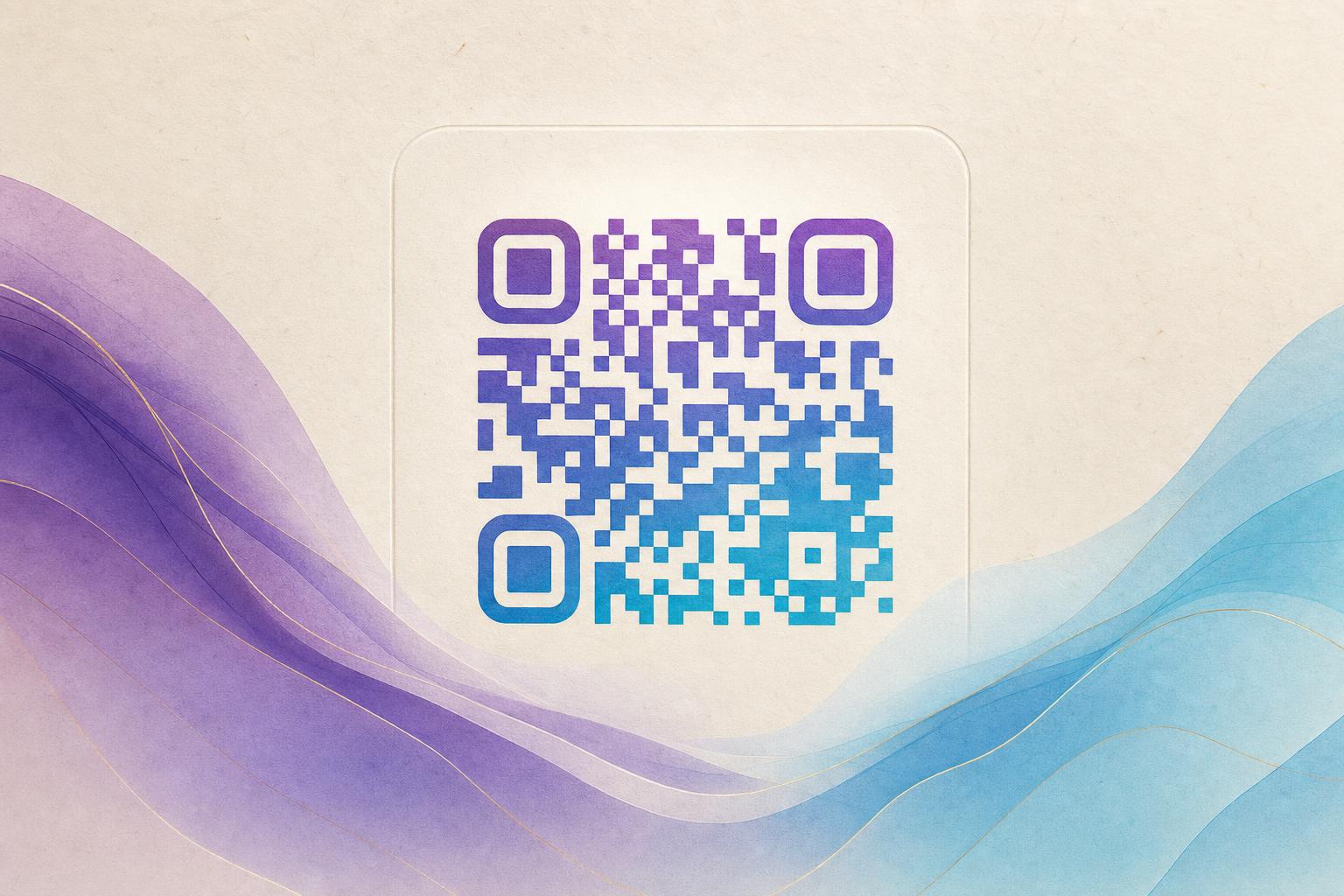
If you are searching for qr code ai gratis, the short answer is this: you can create a free AI art QR code that turns a normal black-and-white code into a small piece of artwork, and you can do it in a browser without design software. The trick is to generate the art first, then protect the scan area so phones still read it. Below is a repeatable workflow you can finish in about ten minutes using a AI Art QR code generator.
What a free AI art QR code actually is
An AI QR code is a standard QR code whose modules (the little squares) are blended into a generated image. The code still carries your destination link, but the pattern is woven into a scene, a texture, or a poster-style illustration. People often call these artistic QR codes because they look like art first and a code second.
Two things stay true no matter how creative the design gets:
- The three corner squares (finder patterns) must remain high contrast and unbroken.
- The link inside must be a working URL, ideally a dynamic QR code so you can change the destination later.
That is the difference between a pretty image and a usable artistic QR code.
Step 1: Decide what the code should do
Before you touch any design settings, write down the job of the code. A free AI art QR works best when the destination is specific. Common choices:
- A menu, booking page, or product page
- A social profile or video
- A membership QR or event check-in link
- A scan to redirect page you may want to change later
If the link might change, choose a dynamic QR code. You keep the same printed image and update the target behind it. This is the single most useful upgrade for any campaign QR code.
Step 2: Generate the AI artwork
Open the AI art tool and describe the look you want. Short, concrete prompts work better than long poetic ones. Include subject, style, and color.
- A coffee cup on a wooden table, warm morning light, minimal
- Neon city street at night, purple and teal, poster style
- Watercolor mountain landscape, soft green and cream
Keep the composition simple and leave one calm area for the code. Busy scenes with heavy detail in every corner make scanning harder.
Step 3: Blend the code into the image
Now place the QR pattern into the artwork. In most QR design tool workflows you control three things:
- Contrast: the code modules must be clearly darker or lighter than the background.
- Module style: dots, rounded squares, or a circular QR code look softer than sharp squares.
- Error correction: set it to a higher level (H) so the code survives partial blending.
Use a styled QR code rather than a fully hidden one. A hidden text art effect can look clever, but if the pattern disappears into the picture, phones will fail. Aim for art that still reads as a code.
Step 4: Add your logo or photo carefully
If you want a QR code blended with a logo or photo, keep the overlay small. A center logo covering roughly 20 percent of the code area is usually safe at high error correction. Never place a logo over the three corner squares.
Test rule: if you cannot see the code pattern from two meters away, a phone camera will struggle too.
Step 5: Test before you print or post
Scan the code with at least three phones, on screen and on paper. Check:
- It opens the correct page
- It scans in under two seconds
- It works in low light and at an angle
- Small print sizes still read
If a scan fails, raise contrast, enlarge the code area, or simplify the background behind the pattern.
Step 6: Make it editable and trackable
This is where a free design becomes a real asset. Use an editable QR code so you can change the link, swap colors, or update the artwork without reprinting. Pair it with QR analytics to see scans by day, device, and location.
Helpful extras to look for in an editable QR code generator:
- A custom short link so the URL looks clean
- A custom QR domain for brand trust
- A smart QR redirect that sends mobile and desktop users to different pages
- Download in PNG, SVG, or PDF for print
SVG is the best format for posters and packaging because it stays sharp at any size.
Step 7: Place it like a design element
An AI art QR earns its space when it is treated as part of the layout, not a sticker. On an AI poster, let the code sit in a natural quiet zone such as a table surface, sky, or solid color block. Add a one-line call to action: Scan for the menu, Scan to join, or Scan for tickets.
For QR branding, reuse the same palette and module style across every code you publish. Consistent artistic QR codes become recognizable, and recognition raises scan rates more than any single clever design.
Where free AI art QR codes work best
- Print: flyers, packaging, business cards, table tents, event badges
- Retail: shelf tags, window decals, receipt footers
- Events: membership QR check-in, schedules, feedback forms
- Social: profile links, link-in-bio pages, story graphics
- Campaigns: a trackable QR code per channel so you can compare performance
Keep one code per destination. Reusing a single code for several links makes QR code marketing data useless.
Common mistakes to avoid
- Too much art, too little contrast. Beauty that will not scan is decoration.
- Low error correction. Use the highest practical level when blending.
- Printing too small. Keep at least a 2 cm quiet margin around the code.
- Static links. Choose a dynamic QR code for anything long-lived.
- No testing. Always scan the final exported file, not just the preview.
Start your free build
You do not need a design team to get a polished result. Generate the artwork, blend the pattern, protect the corners, and test on real phones. When you are ready to make your own, open the AI Art QR tool and build a qr code ai gratis in a few minutes. Then keep it editable, watch your QR analytics, and refine the design as your campaign grows.