
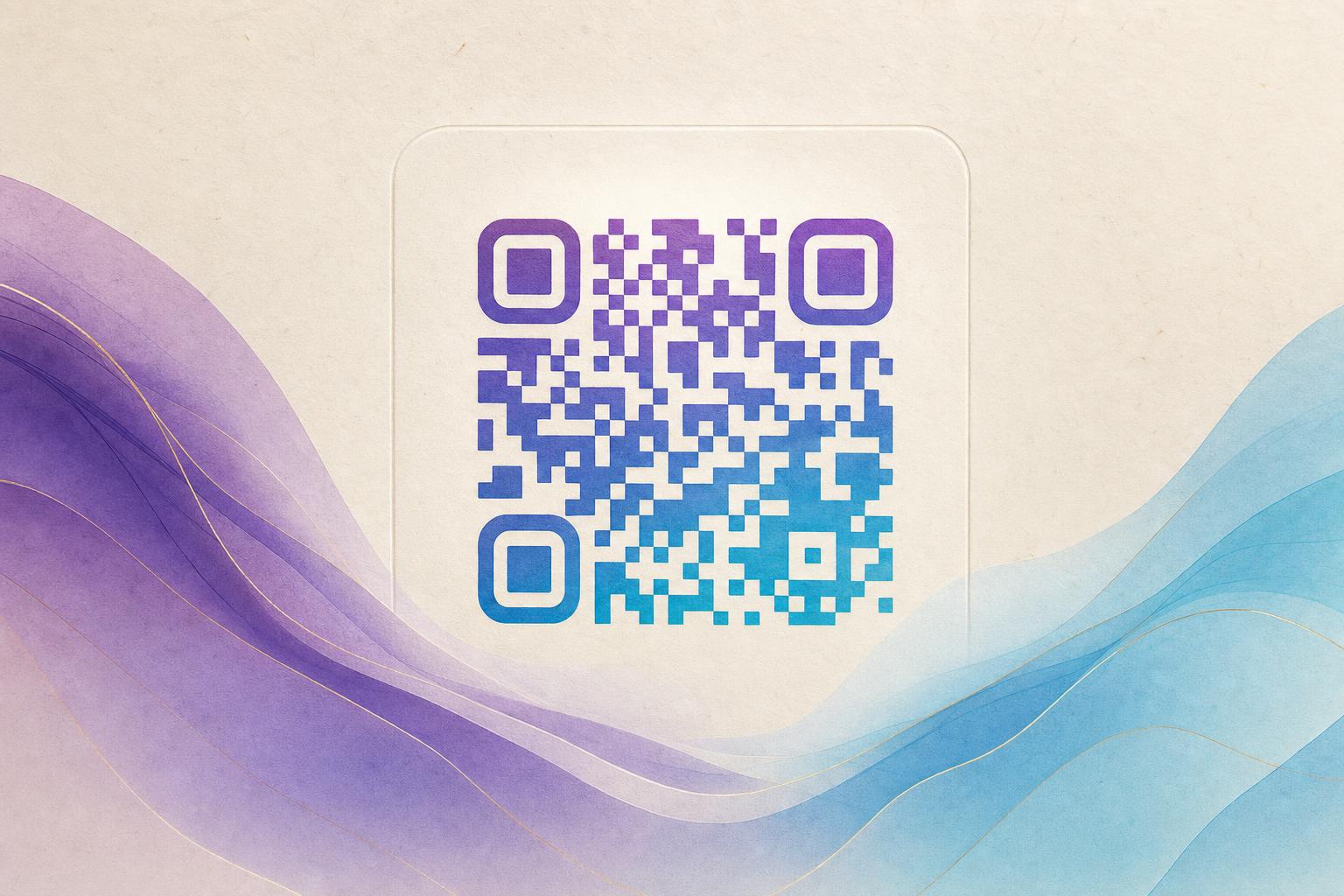
If you have been searching for ai สร้าง qr code in English, you are looking for a way to let AI generate a QR code that looks like art instead of a plain black-and-white grid. The short answer: you open an AI art QR tool, enter the destination URL, describe the scene or style you want, generate a few variations, then test the scan before you publish. Aiqrdream's AI Art QR tool is built for exactly this workflow, and the steps below show how to get a result that is beautiful and still reliably scannable.
What an AI artistic QR code actually is
An AI QR code is a normal QR code whose modules are reshaped, colored, or blended into an image by a generative model. The data layer still exists, but it is woven into a picture: a landscape, a product photo, a poster background, or a pattern. Done well, the code looks like design work and scans instantly. Done badly, it looks stunning on screen and fails at the checkout counter.
The goal of this tutorial is the second problem: keeping the art while protecting the scan. Everything below assumes you care about both.
Step 1: Decide what the code must do before you make it pretty
Art is the wrapper. The destination is the job. Before you open any qr code ai art generator online tool, write down three things:
- The destination URL — a landing page, menu, product page, or signup form.
- Where it will be scanned — a printed poster, a screen, a package, a table tent, or a business card. Distance and lighting change your design choices.
- Whether you need to change it later — if yes, you need a dynamic QR code so the link can be edited after printing.
If the code will live on printed material for months, choose a dynamic QR code from the start. A static code locks the destination forever, which is fine for a personal link and painful for a campaign.
Step 2: Generate the base code and the art together
Open the AI Art QR tool and enter your URL. Then write a prompt that describes the image, not the code. Strong prompts usually include a subject, a setting, a color palette, and a style. For example:
A mountain lake at sunrise, warm orange sky, pine trees framing the edges, soft watercolor texture, high contrast in the center
Notice what that prompt does: it puts visual interest around the border and keeps the middle calm. That is the single most useful habit in AI QR code design. The finder patterns (the three squares in the corners) and the central data area need contrast and quiet space. Busy detail in the middle is what breaks scans.
Generate several variations rather than accepting the first result. Most tools let you adjust the blend strength between the code and the artwork. If the tool offers a beautify QR code slider or a fusion intensity setting, start around the middle and move toward stronger art only while the scan still passes.
Prompt patterns that work well
- Product blend: place the product in the center and let the code pattern become the background texture.
- Poster style: describe a flat graphic layout with bold shapes and a clear focal point.
- Photo fusion: upload a photo and let the tool blend modules into the image's shadows and highlights.
- Minimal brand look: two brand colors, generous white space, a simple geometric motif.
Step 3: Blend a logo or photo without killing the scan
If you are using the qr fusion approach with your own image, keep three rules in mind:
- Protect the corners. Never place a logo, face, or dark object over the three finder patterns.
- Keep contrast. Dark modules on a light background scan best. Inverted codes work on screens but fail on many printed surfaces and older phones.
- Leave a quiet zone. A clean margin around the code helps scanners lock on, especially on textured paper.
Logos belong in the center, and only if the tool adds error correction to compensate. Keep the logo under roughly a fifth of the code's width, and test before you commit.
Step 4: Test like a stranger, not like the designer
You know where the code goes. Your audience does not. Test at the real size and the real distance:
- Print a proof at final dimensions and scan it from one to two meters away.
- Test on at least three phones, including an older model.
- Try it in low light and at an angle.
- Scan from a screen if the code will appear on a monitor or TV.
If a scan hesitates for more than a second or two, reduce the art intensity and regenerate. A slightly calmer design that scans instantly beats a spectacular one that needs three attempts.
Step 5: Publish with tracking and a short link
Once the design passes, finish the job with the parts that make it useful:
- Use a custom short link or custom QR domain so the code looks intentional and stays editable.
- Turn on QR analytics to see scans by time, place, and device.
- Set up a smart QR redirect if you want one code to send mobile users to an app store and desktop users to a web page.
- Keep the source file and the prompt so you can produce a matching set for a campaign.
This is where a dynamic QR code earns its place: you can change the destination after the poster is printed, and you keep a trackable QR code record of every scan.
Step 6: Extend the design into a full campaign
One artistic code is a nice detail. A consistent set is a brand system. Reuse the same palette, the same prompt structure, and the same corner treatment across a series of codes for a menu, a product line, or an event. A matching AI poster around the code makes the whole piece feel designed rather than assembled, and a campaign QR code with its own short link lets you compare performance across placements.
For membership programs, a membership QR with a stable dynamic link is ideal: you can update the offer behind the code without reprinting cards. For retail, a scan to redirect setup lets one printed code serve seasonal promotions all year.
Common mistakes to avoid
- Chasing beauty over scannability. Always test before printing at scale.
- Too much detail in the center. Keep the data zone calm.
- Low contrast palettes. Pastel-on-pastel looks elegant and scans poorly.
- Static codes for long campaigns. You lose the ability to edit and track.
- No quiet zone. Crowding the code with text hurts recognition.
Start with one code, then build a set
The fastest way to learn this workflow is to make a single code end to end: pick a destination, generate art with a calm center, blend your logo carefully, test on real phones, and publish it as a dynamic, trackable link. Once that works, repeat the same recipe with new prompts and new destinations. That is how AI art QR design becomes a repeatable part of your QR code marketing instead of a one-off experiment.