
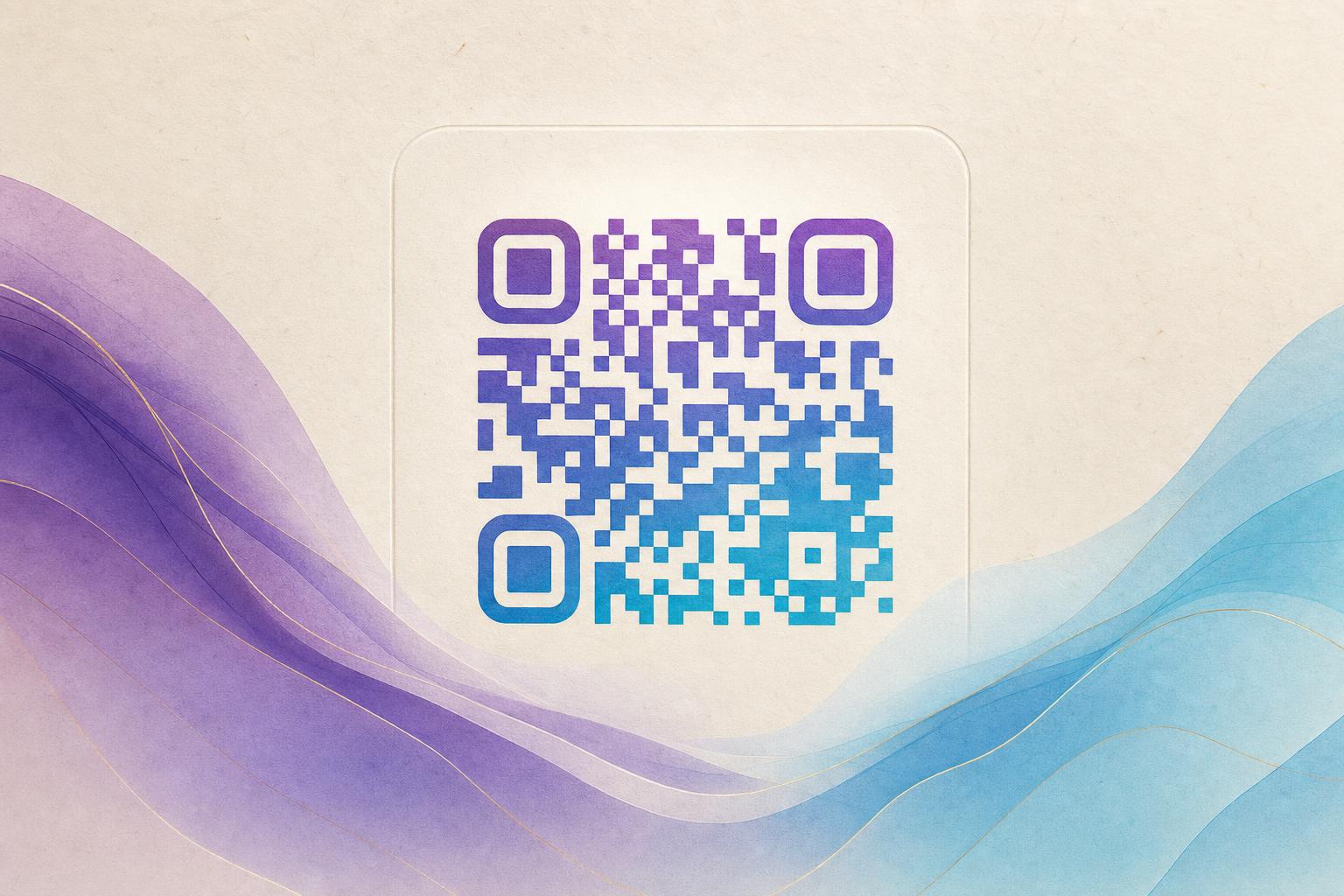
An AI QR code generator takes a standard black-and-white matrix and rebuilds it inside an image, so the code looks like part of a design instead of a sticker glued on top. With Aiqrdream's AI Art QR Generator, you upload a photo or logo, choose a style, and the tool blends the QR pattern into the artwork while keeping it scannable. This guide walks through the full workflow: preparing your image, generating the code, testing it, editing it, and tracking scans.
What an AI art QR code actually is
Every QR code is a grid of modules that encodes a URL. An AI art QR keeps that data intact but reshapes how the modules appear: they may curve along a face, hide inside foliage, or merge with a logo mark. The result is a styled QR code that still resolves to your link when scanned.
Two things matter more than looks:
- Contrast. The code area needs enough difference between light and dark modules for a phone camera to read it.
- Quiet zone. Leave a clean margin around the code so scanners can lock on quickly.
Good AI art QR tools protect both automatically, but you should still test before printing.
Step 1: Decide what the code should do
Before you open any qr code generator, pick the destination. Common choices:
- A product page or campaign landing page
- A menu, booking form, or event RSVP
- A custom short link you can change later
- A membership signup or membership QR for a club or gym
If you plan to run QR code marketing campaigns, use a dynamic QR code so you can update the destination without reprinting. A trackable QR code also gives you QR analytics such as scan counts, cities, and devices.
Step 2: Prepare your photo or logo
The source image drives the final quality. A few practical rules:
- Use a simple subject. A portrait, a single product, or a bold logo works better than a busy street scene.
- Keep the focal point centered. The code will sit in the middle of the composition.
- Use high resolution. At least 1000 pixels on the short side avoids a blurry print.
- Prefer light backgrounds. Dark-on-light artwork keeps module contrast readable.
For a logo, use a transparent PNG or a clean vector export. Logos with thin lines tend to lose detail once the QR pattern is blended in.
Step 3: Generate the AI art QR code
Open the AI Art QR Generator and follow this sequence:
- Paste your destination URL.
- Upload your photo, logo, or artwork.
- Choose a style or prompt that matches your brand.
- Adjust blend strength so the code stays visible without ruining the image.
- Generate and preview the result.
If the first attempt looks muddy, raise the contrast or lower the blend strength. A slightly more visible pattern usually scans faster than a fully hidden one.
Step 4: Test the code before you commit
Test on real devices, not just the preview window:
- Scan with at least two phones, one iPhone and one Android.
- Test at the final print size, not zoomed in on a monitor.
- Try scanning from one meter away, which is a realistic poster distance.
- Check in low light, since many scans happen indoors or at night.
If a scan fails, increase the size of the code area, add contrast, or switch to a circular QR code layout that leaves more clean space around the modules.
Step 5: Edit and refine the design
Most projects need a second pass. Use the editor to:
- Swap the background image for a cleaner one
- Adjust colors so the code area stays legible
- Add a logo in the center with a safe margin
- Round the modules for a softer, more designed look
If you want a free starting point before upgrading, look for an editable qr code free option and an ai art qr code generator free tier to test styles. Once the design is approved, move to a paid plan for higher resolution exports and dynamic redirects. You can also edit qr code online later without regenerating the artwork.
Step 6: Set up redirects and tracking
A live QR code is one you can update after printing. Set up a smart QR redirect so the same printed code can point to a new page next season. This is where a custom QR domain helps: scans go through your own branded link instead of a generic shortener, which supports QR branding and builds trust.
Turn on QR analytics to see how the code performs. Useful metrics include total scans, scan time of day, top cities, and device type. Use them to decide where to place the next campaign QR code.
Step 7: Place the code where people will scan it
Design only matters if the code gets scanned. Placement tips:
- Put the code at eye level or chest level, not near the floor.
- Keep at least 2 cm of clear space around the code.
- Add a one-line call to action: "Scan to see the menu" beats a bare code.
- For print, export at 300 DPI and size the code at least 2.5 cm wide.
An artistic QR code should look like part of the design, but it must scan on the first try. Test first, then print.
Common use cases for AI art QR codes
These designs work well across several formats:
- Posters and flyers: use an AI poster layout with the code built into the artwork. An online poster maker plus a poster generator can produce a full campaign set.
- Product packaging: blend the code into the label art for a premium feel.
- Business cards: a QR code that opens a contact card or portfolio.
- Event badges: a scan to redirect code that opens the schedule or check-in form.
- Hidden text art: use AI hidden text styles to embed a message inside the pattern for a subtle brand moment.
Mistakes to avoid
- Over-hiding the code. If the pattern disappears, scans fail.
- Low contrast. Light gray modules on white rarely scan.
- Printing too small. A beautiful code the size of a stamp is useless.
- Skipping the test. Always scan the exported file, not the on-screen preview.
- Forgetting the redirect. A static code locks you into one URL forever.
Start with one design, then scale
Pick one photo or logo, generate a single artistic QR code, test it, and print a small batch. Once you confirm it scans reliably, reuse the same style across your campaign so your codes feel like a family. Aiqrdream's QR code studio keeps your designs, redirects, and analytics in one place, which makes it easier to beautify QR code assets across print, packaging, and social posts without rebuilding each one from scratch.