
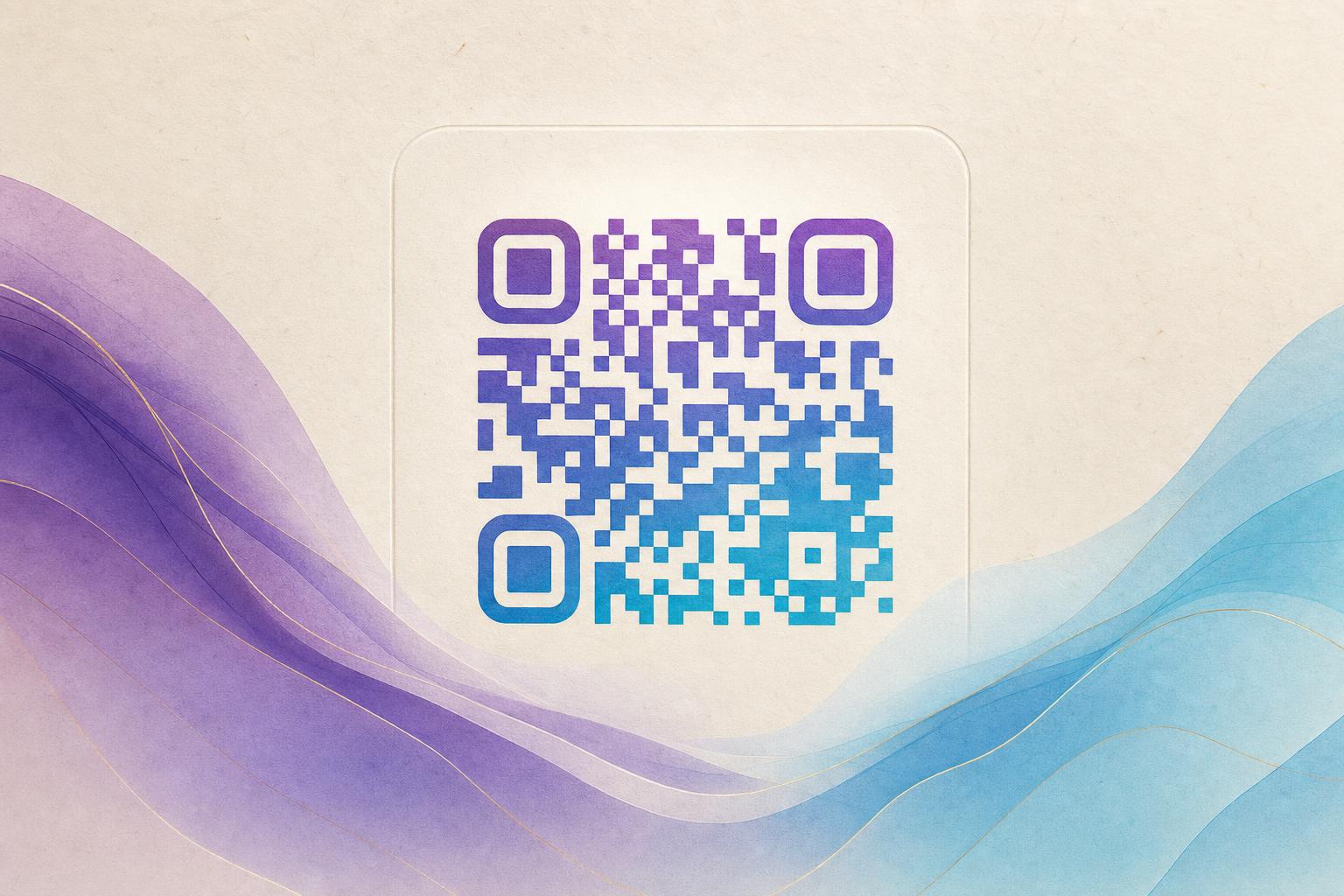
If you want to use AI to make a QR code, the process is simpler than it looks: you give the generator a destination link, describe the artwork you want, and the AI blends a scannable code into that image. The result is an AI QR code that looks like a small poster instead of a black-and-white grid, while still opening the right page when someone scans it. This guide walks through the whole workflow on Aiqrdream, from choosing your link to testing the final image before you publish it.
What an AI artistic QR code actually is
An artistic QR code is a normal, working QR code whose modules (the little squares) have been reshaped, recolored, or embedded into an illustration, photo, or logo. The AI does not invent a fake code; it keeps the scannable pattern intact and builds the design around it. That is why a good AI art QR still opens your URL on the first try, even when it looks like a painting.
This matters for QR code marketing. A plain code on a flyer gets ignored. A styled QR code that matches your brand, a product photo, or a seasonal theme invites people to scan it. The code becomes part of the design rather than a sticker slapped on top.
Before you start: get your destination ready
The AI can only style the code, not fix a broken link. Spend two minutes here and you will save yourself a reprint later.
- Choose the final URL. A landing page, menu, signup form, product page, or event page all work.
- Use a dynamic QR code if the content may change. A dynamic QR code points to a short link you can edit later, so the printed design never goes stale.
- Set up a custom short link. A clean custom short link on a custom QR domain looks more trustworthy and keeps your QR branding consistent.
- Decide on a theme. Write down three to five words: colors, mood, subject. This becomes your prompt.
Step 1: Open the AI art QR tool
Go to the AI Art QR tool on Aiqrdream. This is the artistic QR code generator built for image-led codes rather than plain grids. You can try it as an ai qr code free workflow before committing to a paid plan, which makes it easy to experiment with several directions.
Step 2: Paste your link and pick the code type
Enter the destination URL. If you want to be able to change the target later, choose the dynamic option and attach it to your short link. If you want a round design, select the circular QR code style; the circular qr code free option is a good fit for logos, badges, and product labels where a square code would look out of place.
Step 3: Write a prompt that the AI can actually use
This is where most people rush and then wonder why the output looks generic. A strong prompt names the subject, the palette, the style, and the placement of the code.
Example: "A watercolor illustration of a mountain lake at sunrise, soft peach and teal palette, the QR pattern woven into the reflection on the water, clean edges so it stays scannable."
Keep the subject simple. Busy scenes with dozens of small details fight with the code pattern and make scanning unreliable. If you are blending a photo or logo, describe where it should sit and how much of the frame it should occupy.
Step 4: Generate and compare variations
Run the prompt and look at several results side by side. Judge them on two things only: does it look good, and does it scan? Favor designs where the code area has clear contrast against the background. Soft, low-contrast pastels look lovely but often fail on a phone camera in dim light.
Step 5: Beautify and fine-tune
Once you have a direction you like, use the editing controls to beautify QR code details: adjust colors, reposition the logo, or add a quiet zone around the pattern. If you need to edit qr code online after the first pass, you can return to the QR code studio and edit qr code settings without starting over. This is where an editable QR code pays off, especially for a campaign QR code that runs for weeks.
Step 6: Test before you print or post
Test the code on at least three phones, at the size it will actually appear. Scan from a screen, then from a printed proof. Check the redirect lands on the right page, and confirm your QR analytics are recording scans so you can measure the campaign.
- Scan at 100% print size, not zoomed in.
- Test in low light and at an angle.
- Confirm the smart QR redirect goes to the correct destination.
- Check that the live QR code still resolves after any link edits.
Step 7: Reuse the design across formats
An AI poster built around your code is only the beginning. The same artwork works on packaging, table tents, business cards, and social posts. For a membership QR, a subtle code blended into a welcome card feels far more premium than a sticker. If you need motion, export an animated version and place it on screens, menus, or event displays. Keep a master file so you can produce new sizes without regenerating the design.
Common mistakes to avoid
- Over-styling. If the pattern disappears into the art, the code fails. Leave breathing room.
- Too small. Shrinking a detailed design below about 2 cm makes scanning unreliable.
- Ignoring contrast. Dark pattern on a light, uncluttered area scans best.
- Forgetting the redirect. A printed code with a dead link is worse than no code at all.
Final thoughts
Using AI to make a QR code is a design decision as much as a technical one. Pick a clear destination, write a focused prompt, generate a few variations, and test before you commit to print. Done well, an AI QR code turns a utility into part of your visual identity, and the AI Art QR tool gives you a fast way to get there.