
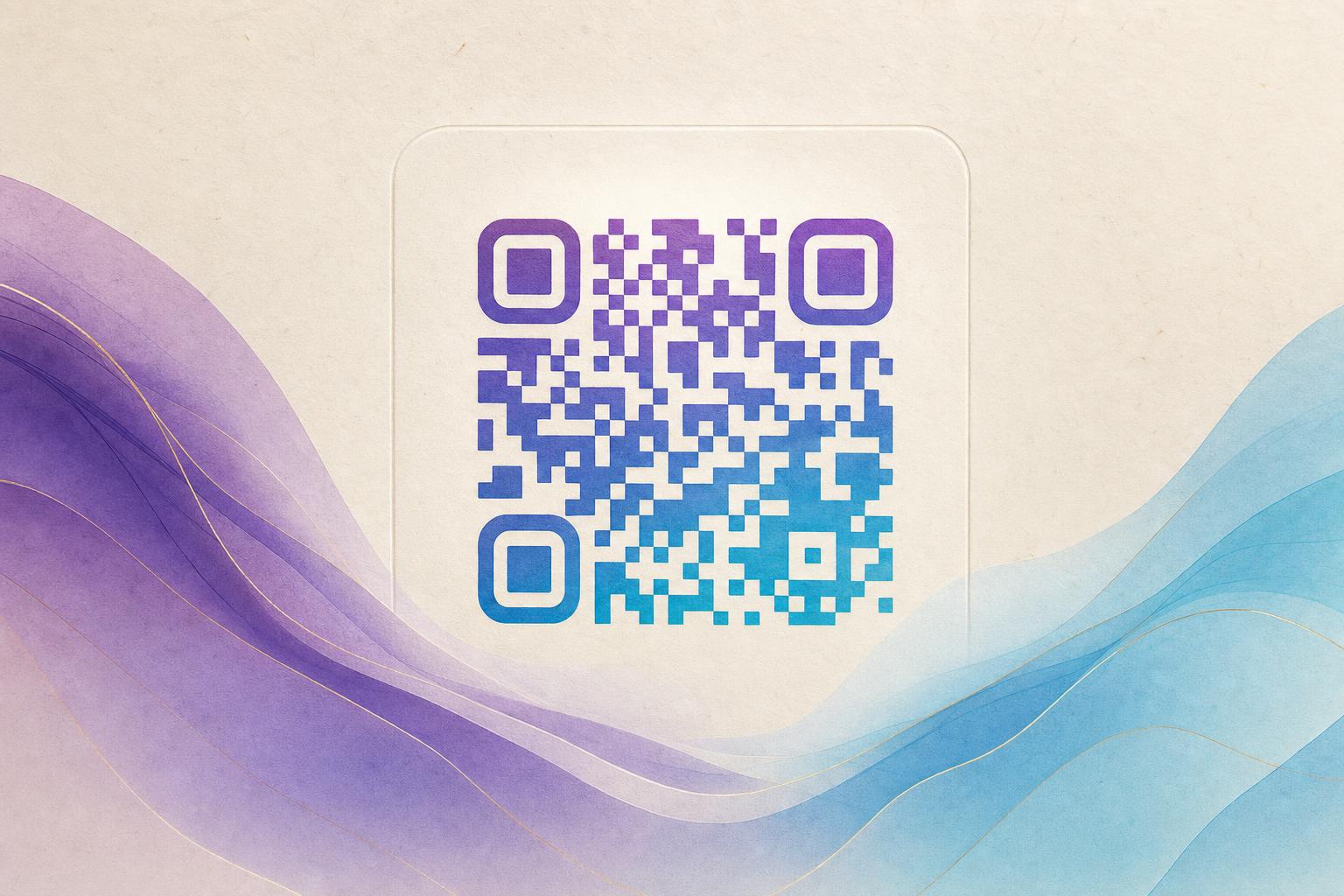
An artistic QR code generator is a tool that renders your destination link as a designed image instead of a plain black-and-white square. You supply the URL, choose a style, and the tool paints the code into artwork while keeping the pattern readable by phone cameras. The fastest route is to open the AI Art QR tool, paste your link, and generate a first draft in under a minute. From there, the real work is tuning contrast, placement, and testing so the code scans from a printed poster, a menu, or a phone screen.
This tutorial walks through the full workflow: picking a destination, generating art, refining the design, testing scans, and tracking results with a dynamic QR code.
Step 1: Decide what the code should do
Before you open any QR code generator, write down the single action you want a scan to trigger. A designed code looks great, but it only earns its place if it sends people somewhere useful.
- Campaign QR code: a landing page, event signup, or product drop.
- Membership QR: a signup form or loyalty program page.
- Menu or catalog: a hosted PDF or mobile menu.
- Portfolio or profile: a link hub for a creator or small business.
Keep the URL short and clean. A long, cluttered link forces a denser code, and dense codes are harder to hide inside artwork. If you need something tidy, create a custom short link first, then feed that into the artistic QR code generator.
Step 2: Generate the first draft
Open the AI art QR tool and paste your destination URL. Choose a visual direction that matches your brand or the poster the code will live on: painterly, geometric, photographic, or something more abstract. The qr code ai art generator online workflow usually asks for a short prompt or a style preset, then produces a draft where the code modules are woven into the image.
Do not judge the first result too harshly. Treat it as a sketch. You are looking for three things: a composition with clear space for the code, colors that contrast with the background, and a focal point that does not sit directly on top of the finder patterns (the three corner squares).
Step 3: Place the code for scannability
This is where most artistic QR codes succeed or fail. Phone cameras need contrast between dark modules and light background, plus intact corner markers. A few practical rules:
- Keep the three finder patterns visually distinct. Do not bury them in dark texture.
- Aim for strong light-dark contrast across the whole code, even if the palette is colorful.
- Leave a quiet margin around the code so the camera can isolate it from surrounding art.
- If you use a circular QR code, keep the center logo small enough that error correction can compensate.
Many tools let you adjust error correction. Higher correction tolerates more artwork covering the code, but it also makes the pattern denser. For a heavily styled design, a moderate-to-high setting is usually the right balance.
Step 4: Blend a photo or logo
If your goal is a styled QR code built around brand assets, use a fusion approach instead of pure AI art. Upload a logo or product photo and let the tool merge it with the code pattern. This works well for packaging, business cards, and event badges where the mark should stay recognizable.
Watch for two problems. First, a busy logo can swallow the code modules, so simplify the asset before uploading. Second, a low-contrast logo on a light background may scan on screen but fail in print. Test both.
Step 5: Try an animated version
For screens, digital signage, and social posts, an animated QR code can catch attention where a static one would be ignored. Animation should support the scan, not distract from it. Keep motion subtle, avoid flashing frames that break the pattern, and confirm the code is readable in at least one frame of the loop.
Step 6: Test before you publish
Never ship a designed code without testing. Run through this checklist:
- Scan with at least two phones, one iOS and one Android.
- Test at the real size: print a proof at final dimensions and scan from a normal viewing distance.
- Test in low light and at an angle.
- Check the printed proof on the actual material, since gloss and dark stock can reduce contrast.
If a scan fails, fix contrast and finder-pattern clarity first. Those two changes solve most problems.
Step 7: Make it editable and trackable
A static code locks in its destination forever. A dynamic QR code points to a short link you control, so you can change the destination later without reprinting. That matters for QR code marketing: seasonal campaigns, corrected links, and A/B tests all become possible.
With a trackable QR code, you also get QR analytics such as scan counts, locations, and device types. Pair that with a custom QR domain so the link looks trustworthy, and use smart QR redirect rules to send mobile users to an app store and desktop users to a web page.
Step 8: Reuse the design across formats
Once the code scans reliably, export it for each placement. A QR code studio workflow usually lets you save the design, then resize it for posters, stickers, table tents, and digital banners. Keep a master file with the original artwork so future edits stay consistent, and store the destination link and scan data alongside it.
If you are building a full campaign, pair the code with an AI poster or use an online poster maker to place the finished code in context. The code should feel like part of the design, not a sticker dropped on top.
Common mistakes to avoid
- Covering the corner markers with artwork or text.
- Using a low-contrast palette because it looks elegant on screen.
- Skipping print proofs and testing only on a monitor.
- Using a static code for a long-running campaign you may need to update.
- Forgetting to check that the destination page is mobile-friendly.
Final takeaway
A good artistic QR code balances two jobs: it has to look like art and behave like a reliable link. Start with a clear destination, generate a draft with an artistic QR code generator, protect the finder patterns, test in the real world, and use a dynamic code so you can edit and track it later. Done well, the design earns the scan and the data proves it worked.