
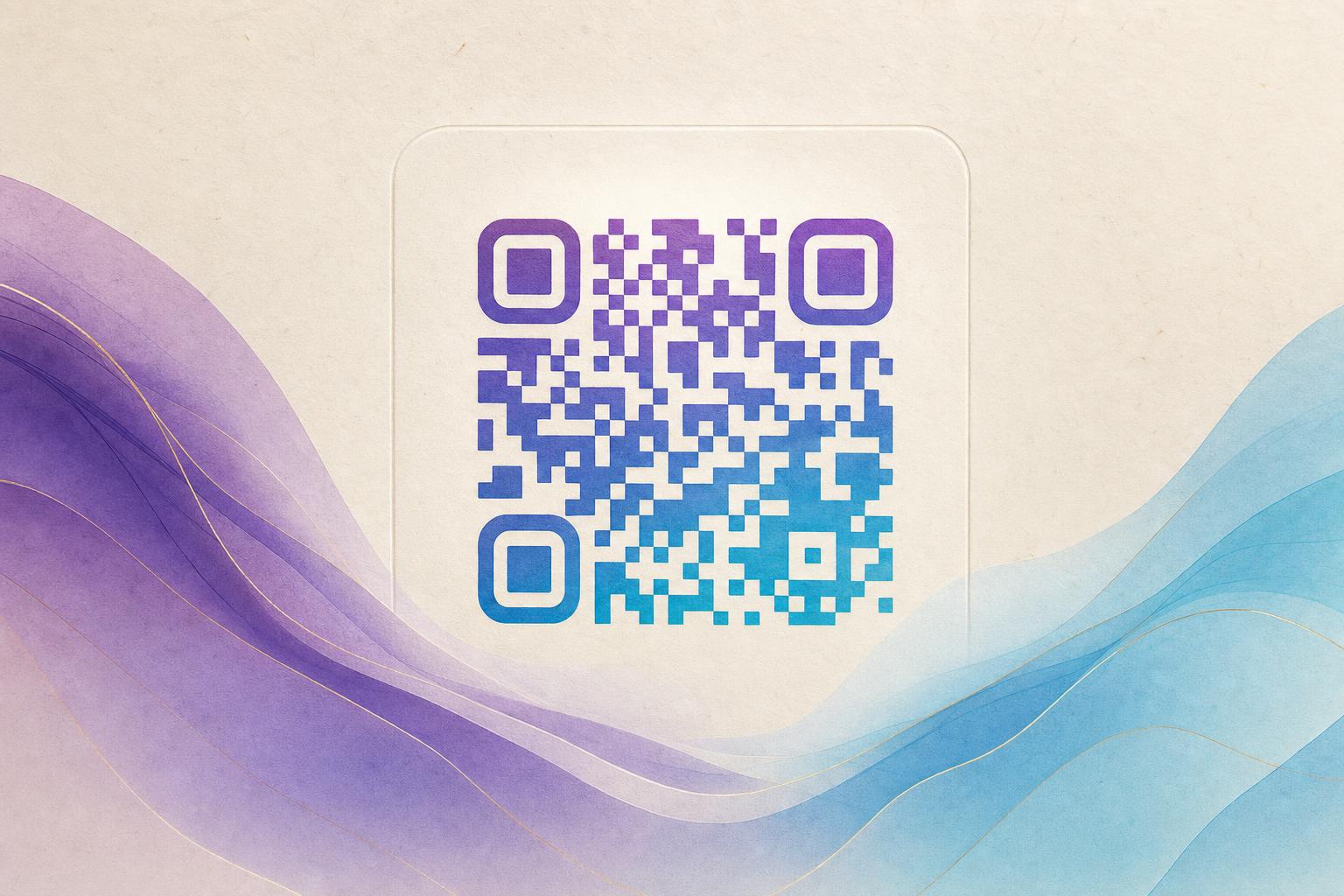
A qr code generator tool free of charge lets you turn any link into a scannable code without paying for a subscription or installing software. The fastest route on Aiqrdream is the AI Art QR tool, which blends your code into an image so it looks like artwork rather than a black-and-white grid. The whole job takes a few minutes: paste your link, pick a style, adjust contrast, and download. This guide walks through each step and shows how to keep the finished code scannable.
Step 1: Decide What the Code Should Do
Before you open any tool, settle the destination. An artistic QR code is still a redirect device, so the link matters more than the picture. Common choices:
- A product page or landing page for a print campaign
- A menu, booking form, or signup page for a physical venue
- A portfolio, video, or social profile for a business card
- A membership page or event ticket for repeat visitors
If you expect to change the destination later, choose a dynamic QR code. A dynamic qr code generator keeps the image the same while the URL behind it can be edited, which means your printed posters stay valid even if the campaign changes. A static code is fine for permanent links that will never move.
Step 2: Open the Free AI Art QR Tool
Go to the AI art tool and paste your destination URL into the link field. Keep the link short and clean. If you have a custom short link or a custom QR domain, use it here, because a shorter URL leaves more room for error correction inside the artwork.
Next, choose the visual direction. The tool works best when you give it a subject that matches your brand or campaign:
- A photo of the product or venue
- A logo or mascot
- A texture, pattern, or gradient that fits your palette
- A scene, such as a coastline or city skyline, for a travel campaign
This is where an AI QR code differs from a plain styled code. The image is generated around the module pattern, so the code reads as part of the picture instead of sitting on top of it.
Step 3: Blend the Code Into the Artwork
Upload your image or describe the scene you want. The tool then merges the code pattern with the artwork. Watch three things during this stage:
- Contrast. The dark modules must stay clearly darker than the light ones. If the blend washes out the pattern, raise the contrast or darken the artwork.
- Quiet zone. Keep a clear margin around the code. Busy edges are the most common reason a beautiful code fails to scan.
- Finder patterns. The three corner squares should stay recognizable. Most tools protect them automatically, but check the preview.
If you want a photo or logo blended directly into the modules rather than a full scene, the QR Fusion tool handles that case well. For a softer, more decorative look, a circular QR code or styled QR code shape can suit packaging and labels.
Test the code on two phones at arm's length before you send anything to print.
Step 4: Test and Adjust
Scan the preview at the size it will appear in real life. A code that works on a screen at full size can fail when printed small. Practical checks:
- Scan from the expected viewing distance, not up close
- Test in low light, since many people scan indoors
- Try both iOS and Android cameras
- Print a proof at final size before a full run
If a scan fails, reduce the amount of detail near the modules, increase contrast, or switch to a simpler image. Small edits usually fix it.
Step 5: Add Tracking and a Smart Redirect
Once the design scans reliably, connect it to a trackable QR code. A smart QR redirect lets you send scanners to different pages by device, language, or time of day, and QR analytics show how many people scanned and when. This is where QR code marketing gets useful: you learn which poster, flyer, or package actually drove traffic.
With an editable QR code, you can update the destination after printing without changing the image. That makes the same code reusable across a season or a product line.
Step 6: Place It Where People Will Scan
Design is only half the job. Placement decides whether the code gets used:
- Give the code a clear call to action, such as "Scan for the menu"
- Keep it at eye level or hand height on posters and signage
- Avoid curved surfaces and glare-prone spots
- Leave enough white space around the code for cameras to lock on
For a campaign, pair the code with an AI poster design so the artwork and the code share the same palette. An online poster maker or poster generator can produce the layout, and the QR code studio output drops straight in.
Step 7: Download and Reuse
Export the finished file at the resolution you need. For print, use a vector or high-resolution PNG; for screens, a standard PNG is enough. Name the file by campaign so you can find it later, and keep the source image in case you need to rebuild the code at a different size.
If you plan to run several campaigns, save your visual settings as a template. Consistent QR branding across posters, packaging, and membership cards makes codes easier to recognize and more likely to be scanned.
Quick Recap
A free QR code generator tool gets you from link to artwork in one session. Choose the destination, open the AI art tool, blend the code into an image with strong contrast, test on real devices, then add tracking through a dynamic QR code. Whether you need a single artistic QR code for a flyer or a full set of campaign codes, the same seven steps apply, and the result stays editable, trackable, and ready to print.