
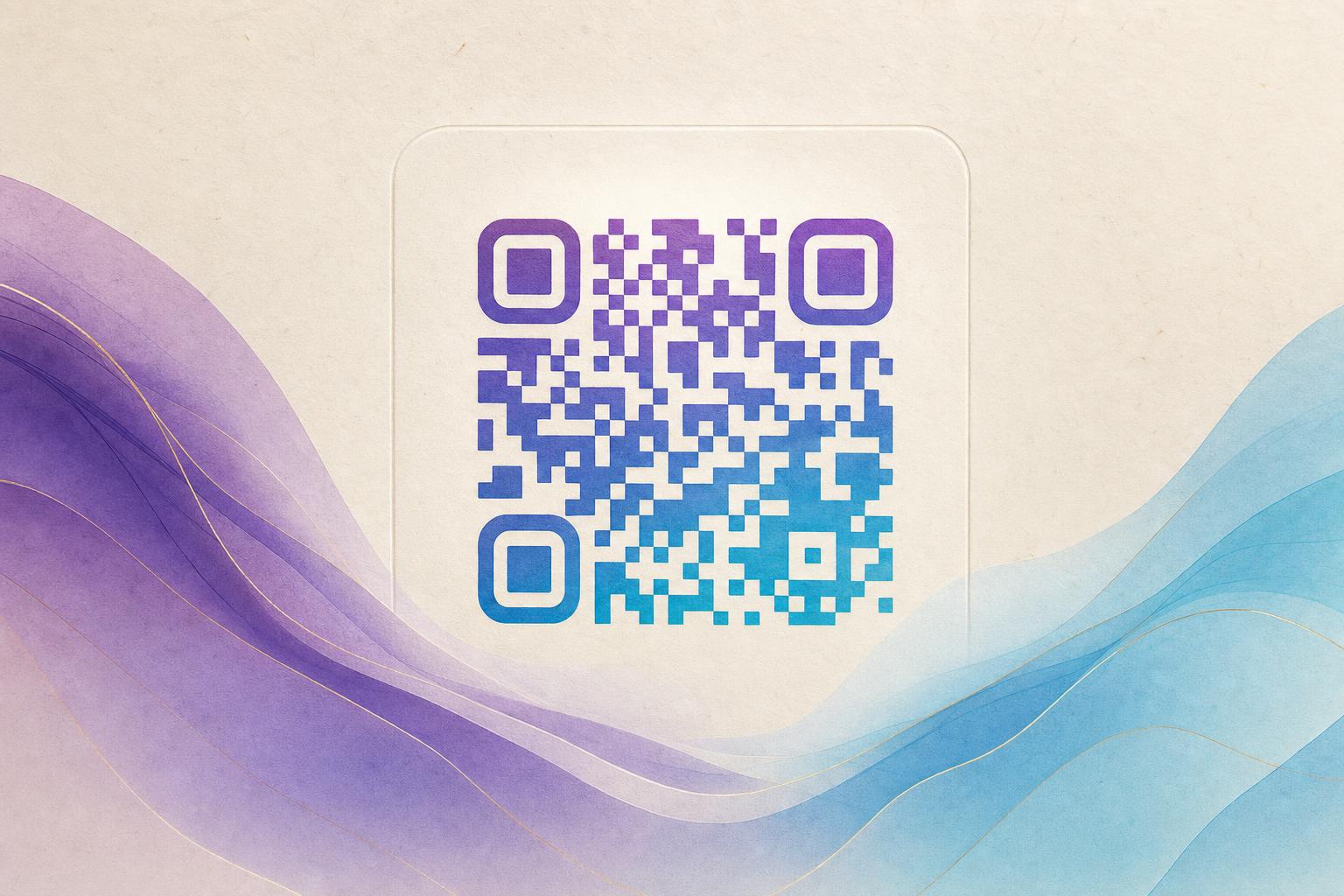
A qr code generator free online is a browser-based tool that turns a link, text, or file into a scannable code without installing software or paying upfront. With Aiqrdream you can go one step further: generate a standard code, then style it as an AI QR code that blends into artwork, a photo, or your logo while staying fully scannable. This guide shows the exact workflow, from first paste to a finished artistic QR code you can print or post.
What "free online" really means for QR codes
Most free tools split into two camps: static generators that bake the destination into the pattern forever, and platforms that give you a dynamic QR code you can edit later. For anything you plan to print, dynamic is the safer choice. You keep the same pattern on the page, but the destination behind it stays an editable QR code — swap the URL, fix a typo, or point a campaign to a new landing page without reprinting.
Free online tools also differ in what they let you style. A basic generator gives you squares and colors. A beautiful qr code generator free of charge should let you adjust modules, eyes, and contrast, and — in Aiqrdream's case — apply an AI art QR layer so the code looks intentional rather than pasted on.
Before you start: three things to prepare
- The destination URL. A landing page, menu, signup form, portfolio, or custom short link. Test it in a private browser window first.
- A visual asset. A product photo, brand mark, poster background, or a text prompt if you want the AI to invent the artwork.
- A contrast plan. Dark modules on a light background (or the reverse) scan best. Artistic treatments must not flatten the contrast between code and background.
Step-by-step: build your AI artistic QR code
Step 1 — Open the tool and paste your link
Go to the AI Art QR Code Generator and enter your destination URL. This is the same starting point as any qr code generator online: the tool encodes the link, then hands you design controls on top of it.
Step 2 — Choose a style direction
Pick the treatment that fits your goal:
- AI art QR — describe a scene or mood and let the generator compose artwork around the code.
- Photo blend — fuse the code into an existing image so it reads as part of the picture.
- Logo fusion — drop your mark into the center and keep the surrounding modules intact.
- Styled QR code — rounded or circular QR code modules, custom eye shapes, and brand colors.
If your artwork is a still image, the AI art route works best. If you want motion, animate the same design later in the GIF tool.
Step 3 — Tune the code so it still scans
This is the step people skip, and it is the one that decides whether your artistic QR code works in the real world:
- Keep the three corner finder patterns clean and high-contrast.
- Leave a quiet zone (blank margin) around the code.
- Increase error correction when you cover part of the pattern with art or a logo.
- Check the size at final print dimensions — small codes on busy backgrounds fail.
Step 4 — Test on real phones
Scan the draft on at least two phones, one older model if possible, at the distance a real user would use. Test in low light and at an angle. If it hesitates, raise contrast or simplify the art before you go further.
Step 5 — Make it dynamic and trackable
Save the design as a dynamic QR code so it stays a live QR code. You can then edit qr code online whenever the destination changes, set up a smart QR redirect, and read QR analytics for scans by time, place, and device. For memberships, a membership QR that redirects to a login or card page is a common use case.
Step 6 — Export and place it
Download a high-resolution file for print and an SVG for anything that will be resized. Place the code where the scan to redirect action is obvious — next to a call to action, not buried in a corner.
Where an artistic QR code earns its keep
- Packaging and labels — a code blended into the artwork feels like part of the design.
- Posters and flyers — build the layout in an online poster maker or poster generator, then drop in a styled code.
- Event and campaign assets — a campaign QR code with a custom QR domain looks credible in print.
- Menus, business cards, and signage — a QR code studio workflow keeps brand assets consistent.
For teams, QR branding matters as much as the destination: consistent colors, consistent eye shapes, and a domain that matches your site.
Common mistakes to avoid
- Too much art over the modules. The code must remain machine-readable; decoration should sit around and between modules, not on top of them.
- Low contrast. Light modules on a light photo is the most common failure.
- Static codes for long-term print. If the link might change, use a dynamic code from the start.
- No tracking. Without QR analytics you cannot tell whether the campaign worked.
- No fallback. Always show the short URL in text beside the code.
Quick checklist
- Destination tested and final.
- Style chosen: AI art, photo blend, or logo fusion.
- Contrast and quiet zone verified.
- Scanned on two real phones.
- Saved as dynamic with analytics enabled.
- Exported at print resolution.
A free online generator gets you a working code in minutes. The difference between a code people skip and one they actually scan is design discipline: keep it scannable, keep it editable, and let the art do the rest.