
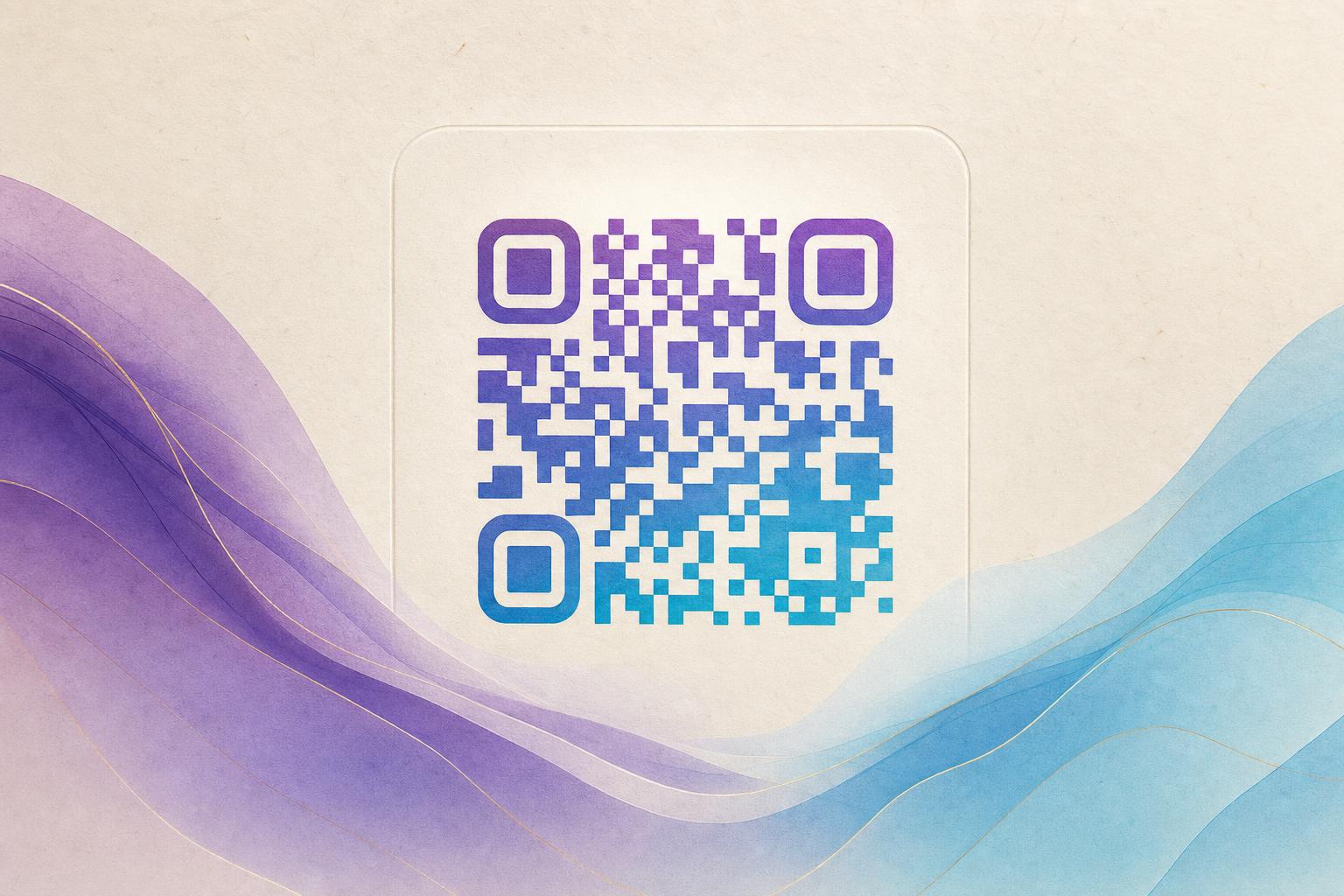
An AI art QR code is a QR code that has been transformed into a piece of art using artificial intelligence, while still remaining fully scannable. Instead of a plain black-and-white grid, you get a design that incorporates textures, illustrations, or brand elements. The key is to keep the QR pattern intact so that any smartphone can read it. In this guide, you'll learn how to create your own AI art QR code using Aiqrdream's AI Art QR tool, step by step.
Why Use an AI Art QR Code?
Standard QR codes are functional but often look out of place on posters, packaging, or social media. An artistic QR code solves that by turning the code into a visual asset. Whether you want a subtle watermark or a bold centerpiece, AI art QR codes help you:
- Increase scan rates by making the code more attractive.
- Reinforce brand identity with custom colors and imagery.
- Stand out in print and digital campaigns.
- Create a memorable experience for users.
Plus, with a dynamic QR code, you can edit the destination later and track scans—more on that below.
Step-by-Step: Create an AI Art QR Code
Step 1: Choose Your Destination URL
Before you design, decide where the QR code should lead. It could be your homepage, a product page, a video, or a custom short link. Using a dynamic QR code tool like Aiqrdream lets you change the URL later without reprinting. For campaigns, consider a trackable QR code with analytics to measure performance.
Step 2: Open the AI Art QR Tool
Go to the AI Art QR tool on Aiqrdream. This is your QR code studio for blending art and function. The interface is intuitive: you'll see options to enter your URL, upload a logo or image, and choose an art style.
Step 3: Enter Your URL and Customize
Paste your destination link into the URL field. Then, select a style from the available presets—such as watercolor, neon, sketch, or geometric. You can also adjust colors to match your brand. If you have a logo, upload it to blend into the QR code. The tool will intelligently place your logo without breaking scannability.
Step 4: Generate and Preview
Click the generate button. The AI will create a styled QR code that incorporates your chosen art style. Preview the result: check that the QR pattern is still visible and that the overall design looks good. You can regenerate for variations or tweak settings like contrast and error correction level.
Step 5: Test Scannability
Always test your AI art QR code with multiple devices. Use a smartphone camera and a dedicated QR scanner app. Ensure it scans quickly from different angles and distances. If it fails, increase the contrast or simplify the design. A good rule: the QR code should be at least 2 cm x 2 cm for print, larger for billboards.
Step 6: Download and Deploy
Once satisfied, download your QR code in high resolution (PNG or SVG for print). Place it on your poster, flyer, website, or product packaging. If you used a dynamic QR code, you can later log in to your Aiqrdream dashboard to change the destination or view scan analytics.
Best Practices for AI Art QR Codes
- Keep it simple: Too much detail can confuse scanners. Leave enough contrast between the QR modules and the background.
- Use error correction: Higher error correction (e.g., H level) allows more artistic freedom but may require a larger code.
- Add a call-to-action: Encourage scanning with a short phrase like "Scan to learn more" or "Scan for a surprise."
- Consider context: For a membership QR, blend your logo subtly; for a campaign QR code, go bold with colors.
- Track performance: Use QR analytics to see how many scans you get and optimize future designs.
Advanced Tips
Blend a Photo or Logo
You can upload a photo or logo to be integrated into the QR code. The AI art QR tool uses image fusion to place your image in the center or as a background pattern. This is great for QR branding—imagine a QR code that looks like your product or mascot.
Create an Animated GIF QR Code
For digital displays, consider an animated GIF QR code. Aiqrdream also offers a GIF QR tool that lets you add motion to your QR code. This can be eye-catching on websites and social media. Just ensure the animation doesn't obscure the QR pattern.
Use a Circular QR Code
If you want a softer look, try a circular QR code generator. Circular codes can be more visually appealing for certain brands. Aiqrdream's circular QR code generator lets you create round QR codes that still scan reliably.
Common Mistakes to Avoid
- Overdesigning: Adding too many elements can make the code unscannable. Always test.
- Low contrast: Light colors on light backgrounds or dark on dark will fail. Use strong contrast.
- Ignoring size: Small QR codes with intricate art may not scan. Scale up for print.
- Forgetting to test: Always test with multiple devices and lighting conditions.
Conclusion
Creating an AI art QR code is a powerful way to combine aesthetics with functionality. With Aiqrdream's AI Art QR tool, you can generate a scannable, artistic QR code in minutes. Remember to test thoroughly and use dynamic QR features to keep your campaigns flexible. Ready to beautify your QR code? Try the AI Art QR tool today and turn your next QR code into a work of art.