
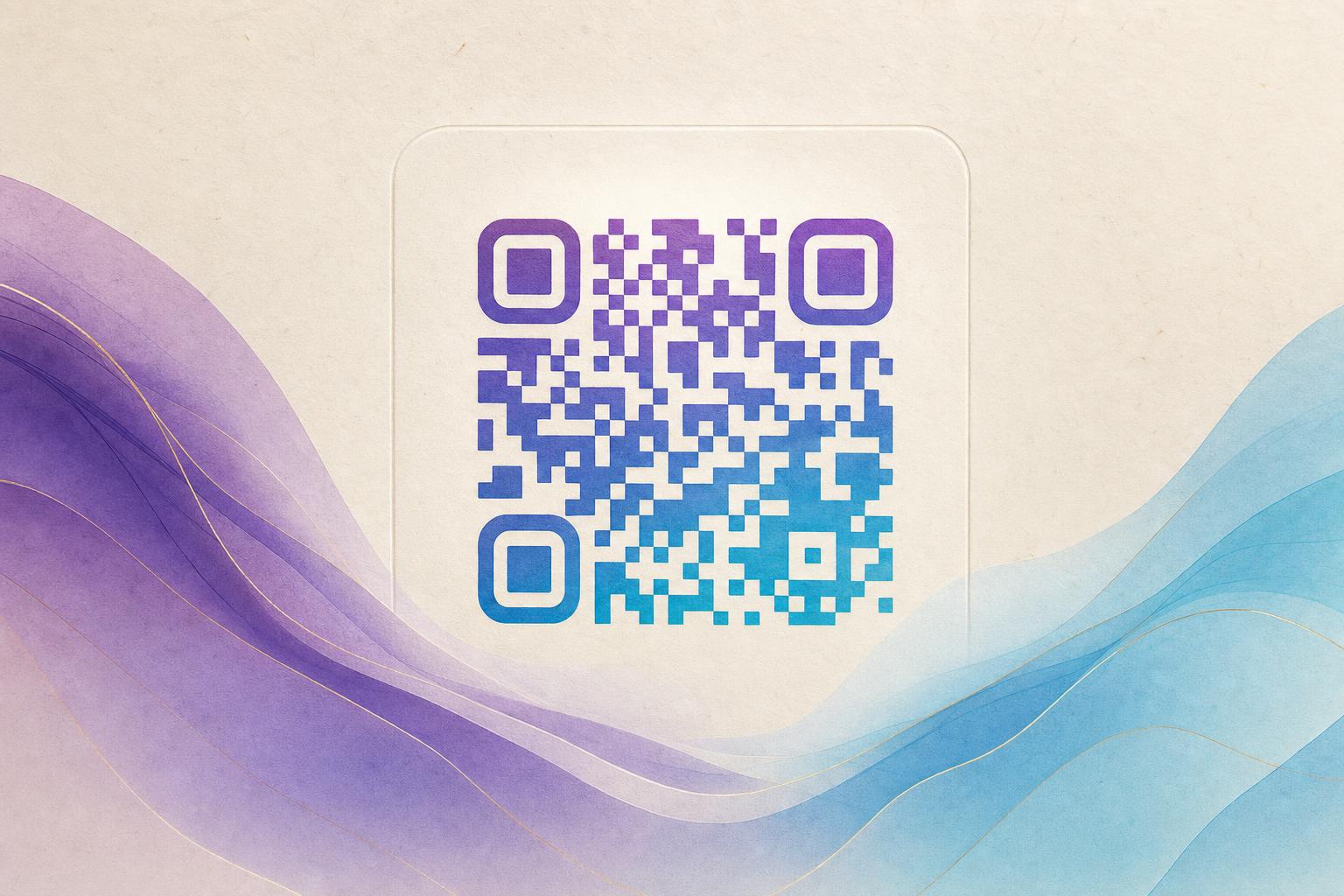
An AI QR code is a scannable QR code whose modules have been blended into artwork, a photo, a logo, or a themed background by an AI-assisted generator. To make one, open the AI art QR tool, upload or describe the image you want, adjust contrast and error correction until the pattern stays readable, then scan-test the result on several phones before you publish it. The code still works because the tool keeps the essential finder patterns and data modules intact while styling everything around them.
Below is a practical workflow you can repeat for posters, packaging, menus, event badges, and social campaigns.
Step 1: Decide what the code must do
Before you style anything, lock down the destination. A beautiful code that points to the wrong page is worse than a plain one. Write down three things:
- The URL the code should open, and whether it needs to change later.
- The scan context, such as print size, distance, lighting, and whether people scan from a phone screen or paper.
- Whether you need tracking, so you can see scans by time, place, and device.
If the destination may change, choose a dynamic QR code or a smart QR redirect with a custom short link. That way you can edit the landing page later without reprinting the artwork. If you want scan counts and campaign reporting, a trackable QR code with QR analytics saves you from guessing.
Step 2: Generate the base code
Start in a QR code generator and create the plain code first. Use a URL shortener or custom QR domain if you want cleaner data and a tidier pattern. Shorter URLs usually produce a less dense grid, which gives the AI more room to work without hurting scannability.
Keep the error correction level in mind. Higher correction tolerates more visual interference, but it also adds modules. For heavily styled artwork, medium-to-high correction is a sensible starting point; test before committing.
Step 3: Choose your artistic direction
There are three common paths, and each suits different goals:
AI art QR
Describe a scene, texture, or style in a prompt and let the generator blend the pattern into the artwork. This is the fastest route to an AI art QR code generator result that looks designed rather than templated. Good prompts name the subject, the palette, the lighting, and the composition. For example: "a mountain lake at dusk, teal and amber palette, soft mist, the code pattern woven into the water reflections."
Photo or logo fusion
If brand recognition matters more than illustration, blend the code with a product photo, portrait, or logo. This is where QR branding pays off: the code becomes part of the label rather than a sticker on top of it. Use a high-contrast logo and avoid placing critical modules over a busy face or fine text.
Animated GIF QR
For screens, digital signage, and social posts, an animated GIF QR can hold attention. Keep the animation subtle around the edges and leave the core pattern steady. Motion in the wrong place is the fastest way to break scanning.
Step 4: Edit and refine online
Once the first version exists, refine it. You can edit QR code online in the same studio: adjust colors, round the corners for a circular QR code look, reposition the artwork, and add a quiet zone around the edge. Useful moves include:
- Darkening modules and lightening the background to raise contrast.
- Keeping the three corner finder patterns clean and unobstructed.
- Leaving a margin of empty space around the code.
- Reducing detail in the center if the artwork starts to compete with the data.
If you are also building the surrounding layout, an AI poster design tool or online poster maker lets you place the styled QR code in context instead of pasting it into a design later. A poster generator is handy for events, retail windows, and menu boards.
Step 5: Test like a stranger
Testing is the step most people skip. Do it properly:
- Scan from at least three devices, including one older phone.
- Test at the real print size, not zoomed in on a monitor.
- Test in low light and at an angle.
- Test with a printed proof if the code will be on packaging or signage.
- Confirm the destination loads quickly and looks right on mobile.
If a scan fails, increase contrast, simplify the artwork behind the modules, raise error correction, or enlarge the printed code. Repeat until every test passes.
Step 6: Put the code to work
A finished artistic QR code is a campaign asset. Use it where people already look: table tents, receipts, product tags, event lanyards, storefront glass, and social stories. Pair it with a clear call to action so people know why they should scan. For recurring use, a live QR code that stays editable lets you swap offers without touching the artwork.
Membership QR codes, scan to redirect flows, and campaign QR codes all benefit from the same discipline: one destination, one purpose, one measurable result. Add QR analytics so you can compare placements and adjust.
Step 7: Keep a reusable template
Save your settings, palette, and prompt notes. A QR code studio workflow becomes much faster when you can reproduce a look across a series of posters or products. Store the final artwork at print resolution and keep the editable source separate from the exported file.
Design the destination first, style the code second, and test with a real phone every time. That order keeps artistic QR codes both beautiful and functional.
Used well, an AI QR code is more than decoration. It is a small piece of QR marketing that carries your brand into a scan and earns the tap.