
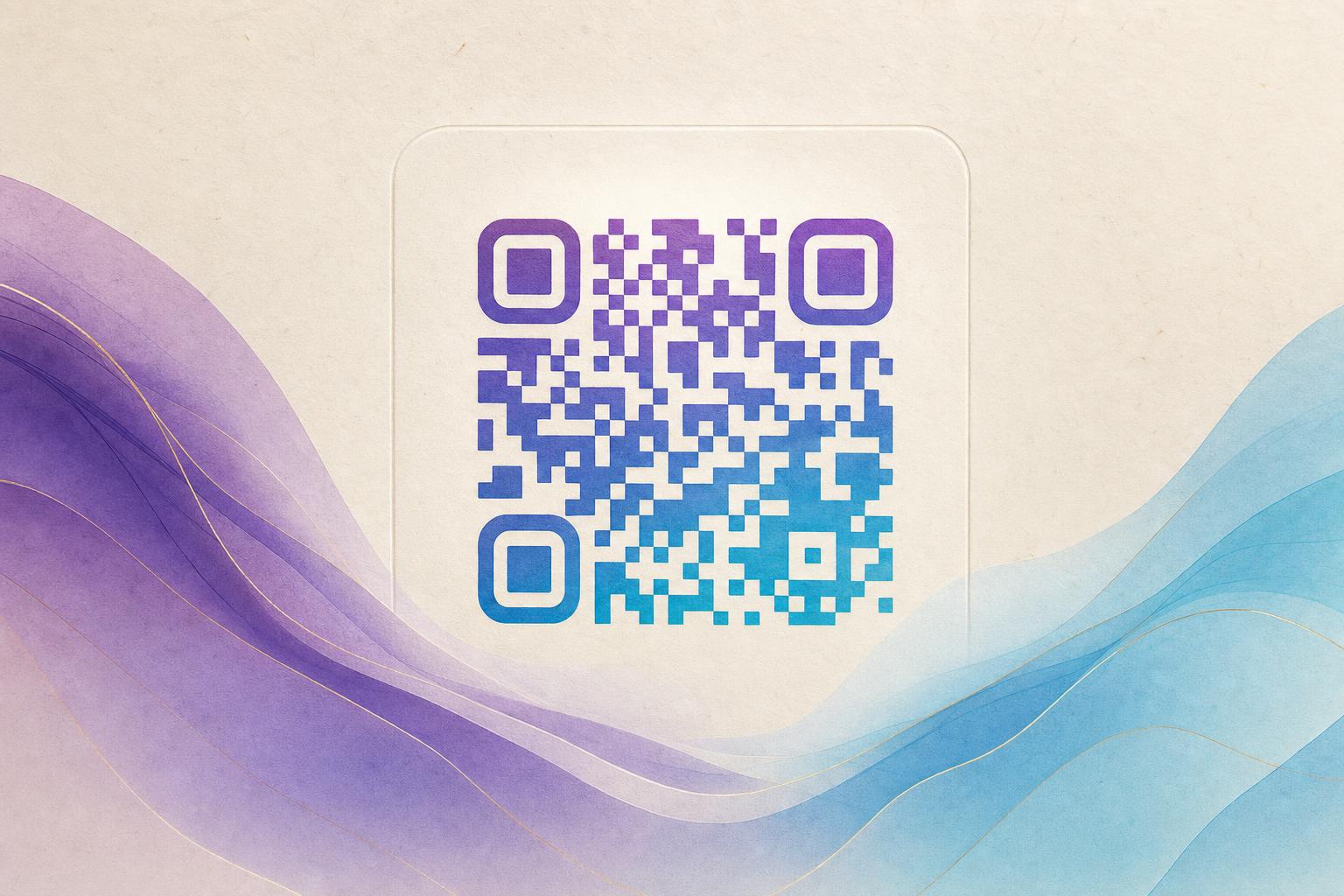
An ai art qr generator is a tool that blends a real, working QR code into a piece of artwork instead of printing a plain black-and-white grid. You give it a destination link and a visual style, and it produces an artistic QR code where the code becomes part of the image. The result still scans like a normal code but looks like a poster, illustration, or brand asset. This guide walks through the full workflow: choosing a link, picking a style, generating the art, testing it, and publishing it with tracking.
Step 1: Decide What the Code Should Do
Before you open any qr code generator online, settle the destination. An art code is only as useful as the page behind it, so pick one clear action:
- A product page, menu, or event landing page
- A custom short link you control and can update later
- A membership QR sign-up or loyalty form
- A scan to redirect link that sends people to a campaign page
If the destination may change, build the code as a dynamic QR code. That way you edit the target later without reprinting the artwork. Static codes are fine for permanent links, but dynamic gives you room to adjust.
Step 2: Choose a Visual Style
The best art codes match the content around them. Think about where the code will live: a table tent, a poster, a product label, a social post, or a storefront window. Then pick a direction:
- Photo fusion: blend the code into a photograph so the pattern reads as texture, shadow, or scenery.
- Logo fusion: place your mark at the center and let the code flow around it for QR branding.
- Hidden text art: shape the code from letters or AI hidden text so a word or slogan appears inside the pattern.
- Poster style: generate a full AI poster with the code built into the composition.
- Animated: use a GIF version when the code appears on a screen, kiosk, or video.
Keep contrast in mind from the start. Dark modules on a light background scan best, and heavy gradients or busy edges can break detection.
Step 3: Generate the Art Code
Open the AI Art QR Generator and follow the on-screen flow:
- Paste your destination URL or custom short link.
- Choose a style, theme, or reference image for the AI QR code.
- Adjust density, contrast, and where the code sits in the frame.
- Generate a version, then refine it until the art looks right and the pattern stays intact.
If you want a softer, badge-like look, switch to a circular QR code generator and keep the center clear for a logo. For photo or logo blending, a fusion tool works better than a plain styled QR code preset. Either way, the goal is the same: an AI art QR that people want to scan because it looks good.
Step 4: Test Before You Print
Never publish an art code without scanning it. Test it properly:
- Scan from the real distance people will use, not just up close.
- Try at least three phones, including one older device.
- Check it in low light and with glare on a screen.
- Print a small proof at final size before a full run.
- Confirm the landing page loads fast on mobile.
If a scan fails, increase contrast, simplify the busiest area, or enlarge the code within the artwork. A small tweak usually fixes it.
Step 5: Publish With Tracking
Once the art code works, set up the backend so you can learn from it. A dynamic QR code tool lets you:
- Point the code at a smart QR redirect you can change anytime.
- Use a custom QR domain so the link looks trustworthy.
- Read QR analytics for scans by time, place, and device.
- Run A/B tests by swapping the landing page behind a live QR code.
This is where QR code marketing gets practical. You can print one campaign QR code and reuse it across seasons, updating the destination instead of the design.
Step 6: Place It Where It Works
Art codes perform best when they are part of the design, not an afterthought. A few placement tips:
- Give the code breathing room, with a quiet zone around the edge.
- Size it for the viewing distance: bigger for posters, smaller for table cards.
- Add a short call to action like "Scan for the menu" or "Scan to join."
- Keep the artwork's focal point away from the code's corners.
For screens, an animated version can draw attention, but keep motion subtle so the pattern stays readable.
Step 7: Keep It Editable and On-Brand
Choose an editable QR code setup so you can update colors, logo, and destination later. If you need a full layout, pair the code with an online poster maker or poster generator and treat the code as one design element. A QR code studio workflow, where you save versions and reuse styles, keeps every campaign QR code consistent with your QR design tool standards.
Common Mistakes to Avoid
- Overdecorating the code until scanners fail.
- Using low-contrast colors that look nice but do not read.
- Printing before testing at final size.
- Using a static code for a link that will change.
- Skipping analytics, so you never learn what works.
An art code is still a code. Beauty gets the first scan; reliability earns the next hundred.
Start with one link, one style, and one test scan. Once you have a working AI art QR, you can reuse the same approach for menus, packaging, events, and membership QR cards. Aiqrdream's AI Art QR Generator and the wider QR code studio give you the tools to beautify QR code designs without losing scan reliability.