
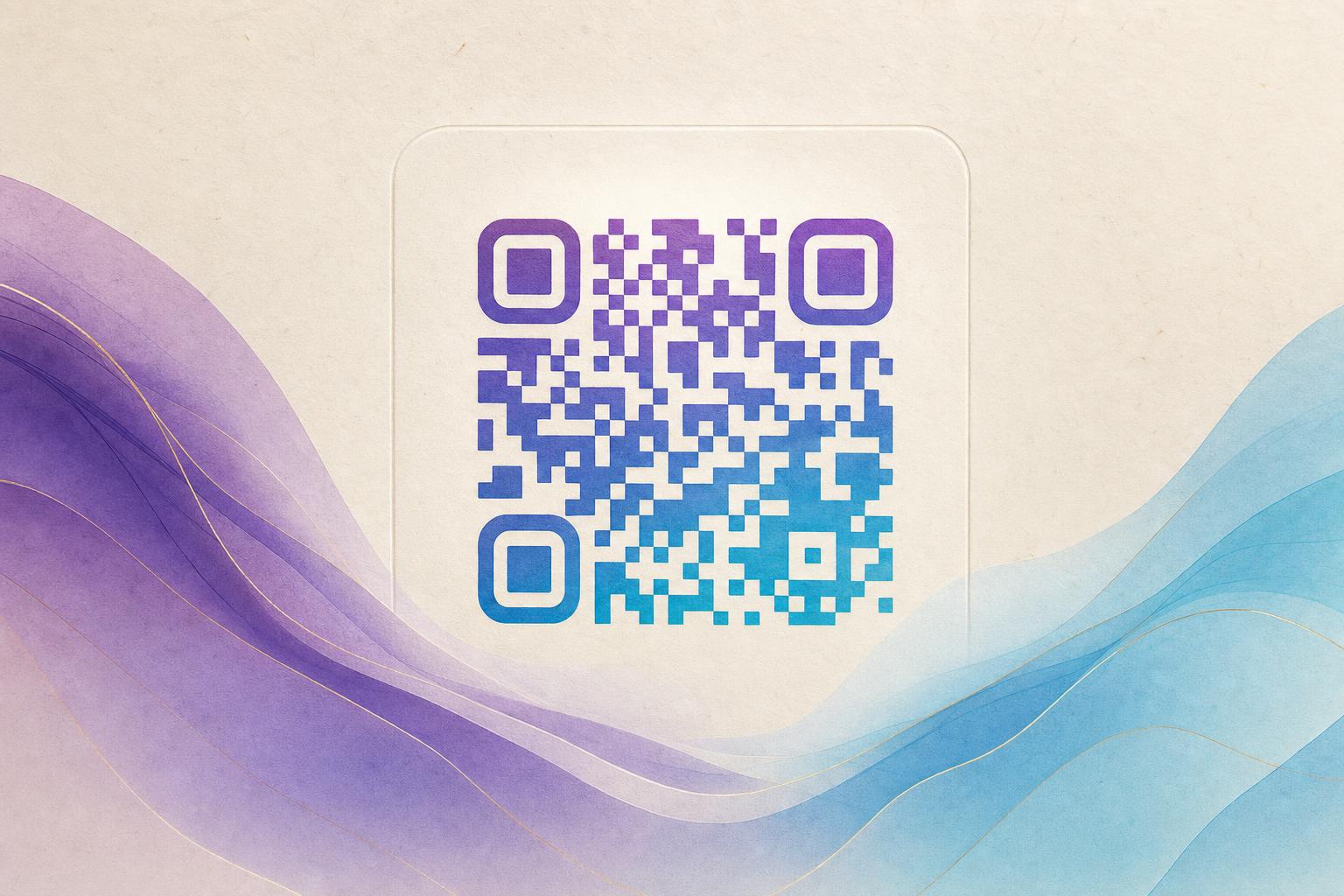
You can edit a QR code online free by creating a dynamic QR code first, then opening it in a browser-based editor where you change colors, module shapes, corner styles, and artwork while the destination link stays intact. The key is to start from a dynamic code rather than a static image: a dynamic QR code stores a short redirect URL, so every design change and every future destination update happens on the server, not in the printed pattern. Below is a practical, repeatable workflow you can finish in about fifteen minutes.
Step 1: Decide What Kind of Edit You Need
"Editing" a QR code can mean three different things, and each one uses a slightly different path:
- Cosmetic edits — new colors, rounded or circular modules, a logo in the center, or a styled frame. These are safe on any dynamic code.
- Destination edits — pointing the same printed code at a new URL later. This requires a dynamic QR code with a smart QR redirect.
- Artistic edits — blending the code into a photo, illustration, or AI hidden text composition so the pattern becomes part of the image.
If you only need the first two, a standard editable QR code generator is enough. If you want the third, plan on an AI art QR workflow from the start.
Step 2: Generate a Dynamic, Editable Code
Open a QR code generator online and choose the dynamic option. Paste your destination URL, then add a custom short link if the tool offers one — a clean slug on a custom QR domain looks better in print and makes later QR analytics easier to read.
Before you style anything, scan the plain code once with two different phones. A code that fails before design work will fail after it too, and troubleshooting is much simpler on a black-and-white version.
Step 3: Open the Code in a QR Code Studio
This is where the actual editing happens. A good QR code studio gives you live preview, so every slider change renders instantly. Work through the settings in this order:
- Foreground and background color. Keep contrast high. Dark modules on a light background scan best; inverted codes fail on many older scanners.
- Module shape. Switch from squares to dots or a circular QR code style for a softer look. Avoid shapes so irregular that modules merge.
- Corner and eye styling. Rounded or custom finder patterns add polish, but keep the three corner squares clearly distinct from the data area.
- Logo or center image. Keep any overlay under roughly 30 percent of the code area and use error correction level H so the scanner can reconstruct hidden modules.
- Frame and call to action. A short label like "Scan to order" lifts scan rates and gives the code a purpose in print.
Step 4: Add Artistic Treatment With an AI Art QR Generator
If you want the code to look like a designed object rather than a utility graphic, move to the artistic layer. With an AI Art QR generator, you upload or describe a scene and the tool blends the QR pattern into the composition — foliage, fabric, architecture, or a branded backdrop — while preserving the scannable structure.
Two approaches work well:
- Photo or logo fusion. Use a QR code generator mode that merges your image with the pattern. Best for packaging, business cards, and event signage where brand recognition matters.
- AI hidden text or poster art. Compose the code so it reads as hidden text art or a small AI poster. This suits QR code marketing campaigns where the code is the visual hook, not an afterthought.
Whatever style you choose, keep the three finder patterns recognizable at a glance. That single rule separates a beautiful artistic QR code from a decorative image that never scans.
Step 5: Test, Then Test Again
Download the styled code and test it under real conditions:
- Scan from the actual printed size, not from a full-screen preview.
- Test in low light and at an angle.
- Try at least one older phone and one budget scanner app.
- Confirm the redirect lands on the correct page, including any tracking parameters.
If a scan fails, raise contrast first, then shrink the logo, then simplify module shapes. Change one variable at a time so you know what fixed it.
Step 6: Keep It Editable After Launch
The real advantage of an editable QR code free workflow is what happens after printing. Because the code points to a trackable QR code redirect, you can:
- Swap the destination for a seasonal promotion without reprinting.
- Point one campaign QR code at different pages by region or device.
- Use a membership QR that routes returning users to their account and new users to sign-up.
- Read QR analytics to see scan volume by time, place, and source.
That is the difference between a live QR code and a dead image file. Treat the printed code as a permanent address and the destination as something you edit whenever you like.
Common Editing Mistakes to Avoid
- Low contrast. Pastel-on-pastel looks elegant and scans poorly. Aim for a strong luminance difference.
- Over-decoration. Too many gradients or textures inside the data area break error correction.
- Editing a static code. If the code is baked into a PNG with no redirect, you cannot change its destination later — only its appearance.
- Skipping the quiet zone. Leave a clear margin around the code; frames that crowd the edge cause failures.
Quick Checklist Before You Publish
- Dynamic code created with a clean custom short link.
- High-contrast palette, tested in grayscale.
- Logo under 30 percent of the area, error correction set to H.
- Artistic layer applied without obscuring finder patterns.
- Scanned from print at final size on two devices.
- Redirect and analytics confirmed working.
Done in that order, editing a QR code online for free takes minutes and gives you a styled QR code that still does its job in the real world. Start with the plain dynamic code, layer on the design, and keep the destination flexible — that is the whole method.